

Tell ARIA what the car is doing. She can choose readings, follow the test and return to the moment that matters—without asking you to learn the language of a scan tool first.
The car acts up on the way to work. By the time you connect a scan tool, it seems fine. You can see dozens of readings, but which ones should you record? What changed when the problem happened? What should you check next?
Those are the questions ARIA 3.0 is built to help you work through. ARIA—the Automotive Reasoning & Intelligence Agent—is part of OBDAI. She can use the vehicle data OBDAI collects, retrieve readings and investigate a recorded drive. In 3.0, she can take a more active role in the diagnostic process, including selecting readings and following up as the test develops.
You can start with “It runs rough,” “Help me with this check-engine light,” or “How do I get this car ready?” You do not need to know which sensor to select, what an acronym means, or the name of a diagnostic record.
ARIA uses your description and the available evidence to decide what to investigate. She may ask when the symptom happens, retrieve current readings, look at recorded data or suggest a comparison under different operating conditions. As the evidence changes, the next useful test can change too.
For an experienced technician, that means less time moving between a long parameter list, the recording and the question you are trying to answer. For someone learning diagnostics, it means you can begin with the problem you understand and let ARIA explain the technical details as they become relevant.
A useful recording starts with a useful selection of readings. ARIA can select parameters to investigate the symptom and retrieve fresh current values. You can say “Help me investigate this hesitation” rather than assembling a technical request with every parameter you think might matter.
The readings still have to come from the vehicle. Available sensors, response speed and recording detail depend on the vehicle and connection. ARIA works with that evidence and can identify what still needs checking.
Some questions need time: what happens after the engine warms up, whether a reading changes during the test, or how two operating conditions compare. Premium and PRO add timed reading selections, check-ins and condition watches. Ultra includes the PRO features.
A check-in lets ARIA return to the readings after an interval. A condition watch can bring a relevant change back to her attention. That keeps the investigation moving without requiring you to repeatedly ask the same question.
Keep OBDAI open and connected for check-ins and watches. ARIA and cloud services also need internet. Set up the test while parked and review the results when safely stopped.
If a symptom happened earlier in the drive, ask about it: “What happened when I accelerated?” or “Look at that stumble.” Add an approximate time if you know it.
ARIA can investigate a short window of recorded data instead of relying only on a whole-drive summary. She can compare what the available readings were doing together around the event. That makes an intermittent complaint easier to investigate after the vehicle has returned to normal.
Recordings can be examined at one-second resolution where the captured data supports it. Individual sensors may update more slowly; a fast graph does not create measurements the vehicle never supplied.
In the ARIA session shown here, the request was simply “Help me fix this check-engine light.” ARIA considered the fault evidence, recommended diagnosis before buying parts and scheduled a fuel-trim check-in.
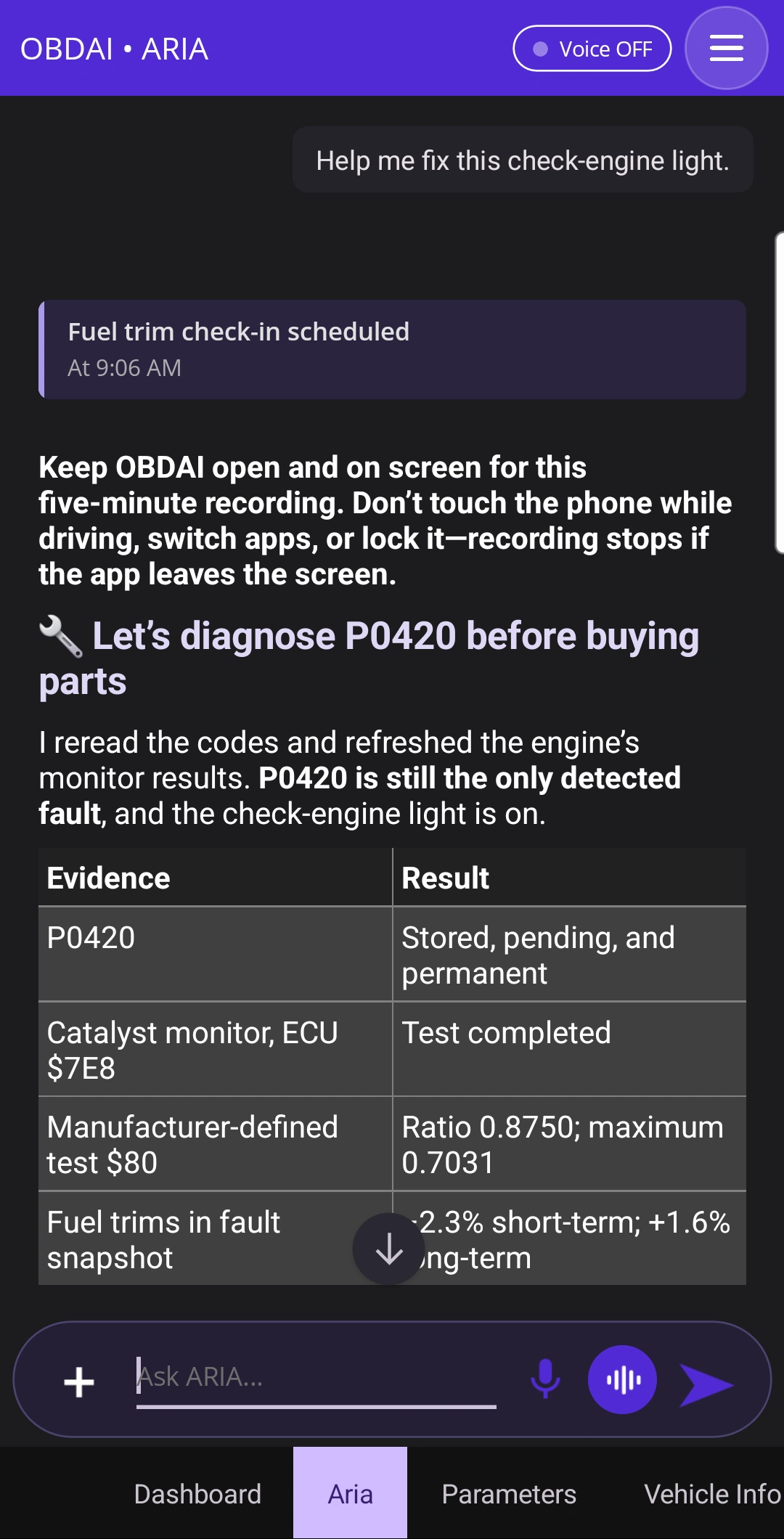
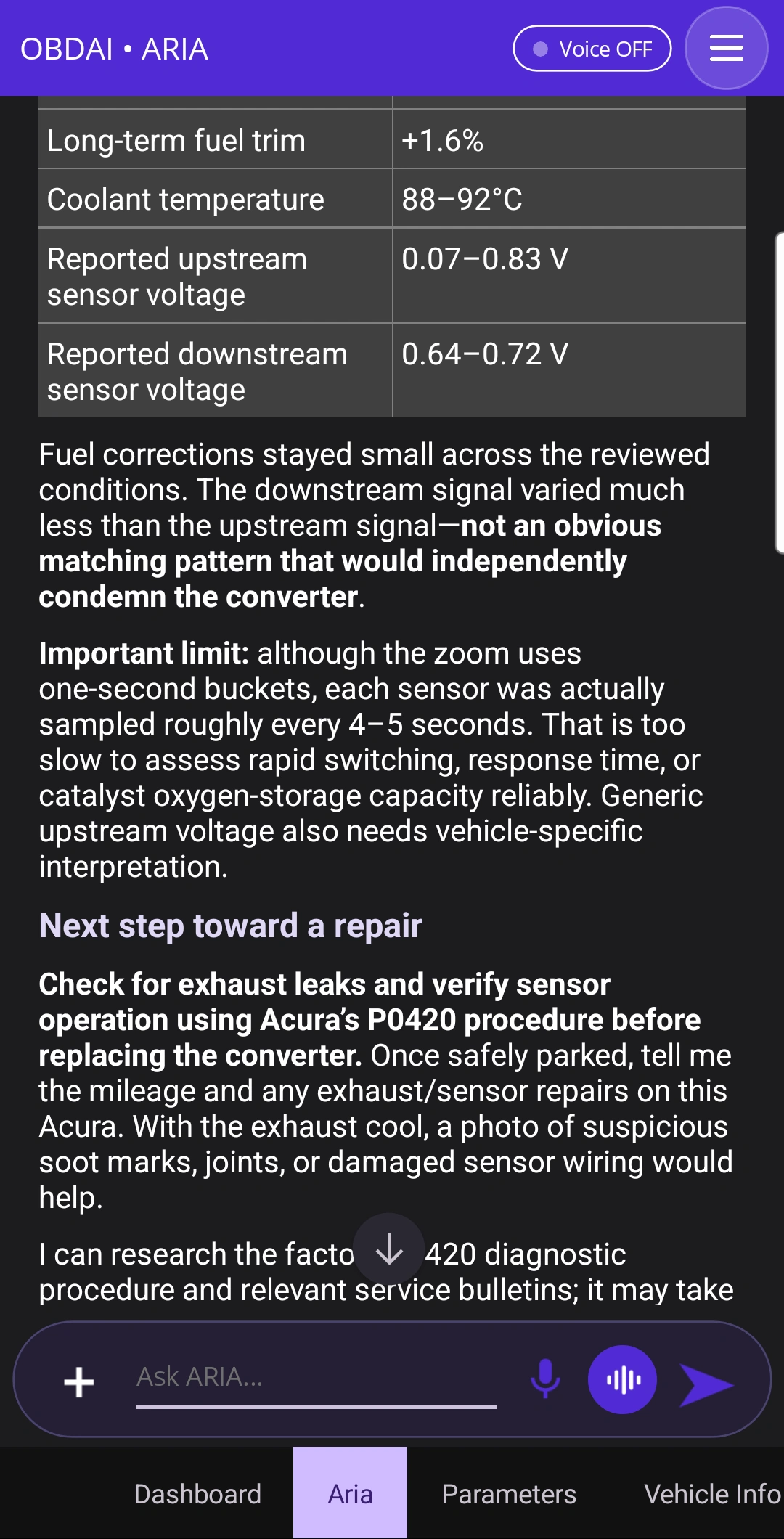
The follow-up found no significant fuel-trim imbalance in the captured readings. ARIA recommended checking for exhaust leaks and sensor faults before replacing the catalytic converter.
That is the practical value of connecting the conversation to the test. The next step follows the evidence you have gathered. The recording supports the investigation; physical checks and the vehicle’s service procedures still matter.
On compatible OBDonUDS vehicles, OBDAI can provide additional readiness and fault evidence. You can still begin with “How do I get this car ready?” ARIA can investigate the available group status, individual tests, results and fault snapshots without requiring you to name them first.
Some evidence has a dedicated screen, including the web dashboard’s Extended DTC Data panel. ARIA can also retrieve and interpret the data directly. A separate screen for every record is a design choice; you do not need to find a page for each piece of evidence before asking about it.
Our readiness and diagnosis explainer shows how this helps separate an unfinished monitor from a completed test that failed.
The Windows J2534 connection arrived after the initial 3.0 release. With OBDAI Ultra and the current Windows app, you can use a compatible J2534 pass-through interface for the same OBDAI diagnostic workflow: live data, codes, readiness, supported onboard tests, recording and ARIA’s analysis.
Install the interface manufacturer’s Windows J2534 driver, activate Ultra, select J2534 in OBDAI and choose your interface from the OBDAI J2534 Bridge tray icon. OBDAI implements the J2534 04.04 and 05.00 standards across manufacturers. Available vehicle protocols and functions also depend on the interface and vehicle.
That gives a shop another way to bring vehicle evidence into ARIA using equipment it already owns. Ultra includes a GEN2 wireless adapter for compatible iPhone, iPad, Android and Windows use, alongside one transferable Windows J2534 seat. The J2534 interface and Windows PC are supplied by you.
OBDAI’s J2534 connection provides diagnostics and ARIA analysis. For module programming or reflashing, use the appropriate OEM programming software with your interface.
See Ultra and J2534 interface examples. Already have Ultra? Follow the Windows setup guide.
You do not need a perfect prompt. Describe what you notice or what you want to accomplish. ARIA can ask for the missing context, work through the readings and guide you toward the next useful check.
Connect OBDAI, open ARIA and start with the car in front of you. Choose your connection or see ARIA 3.0 across the apps.
