



Short answer: Seven PRO-exclusive data tabs on the Vehicle Detail page that pull market value, title status, auction history, warranty, maintenance schedules, common repairs, and sales history from third-party databases. Each tab loads on demand — you click the button to fetch data.
How They Work
Tabs do NOT auto-load. Each one shows an icon, a description, and a gradient “Load” button. You click the button. The dashboard fetches data from paid third-party APIs. Once loaded, data stays cached for your session.
This is intentional. These are paid API calls. You load what you need, when you need it.
 Each tab shows an icon, description, and Load button before you click
Tab 1: Market Value
Button: Load Market Value Description: Get trade-in, private party, and dealer retail values.
Shows a table broken down by Trim and Condition. Conditions are color-coded: – Outstanding — green – Clean — blue – Average — yellow – Rough — red
Three value columns per condition: Trade-In, Private Party, Dealer Retail.
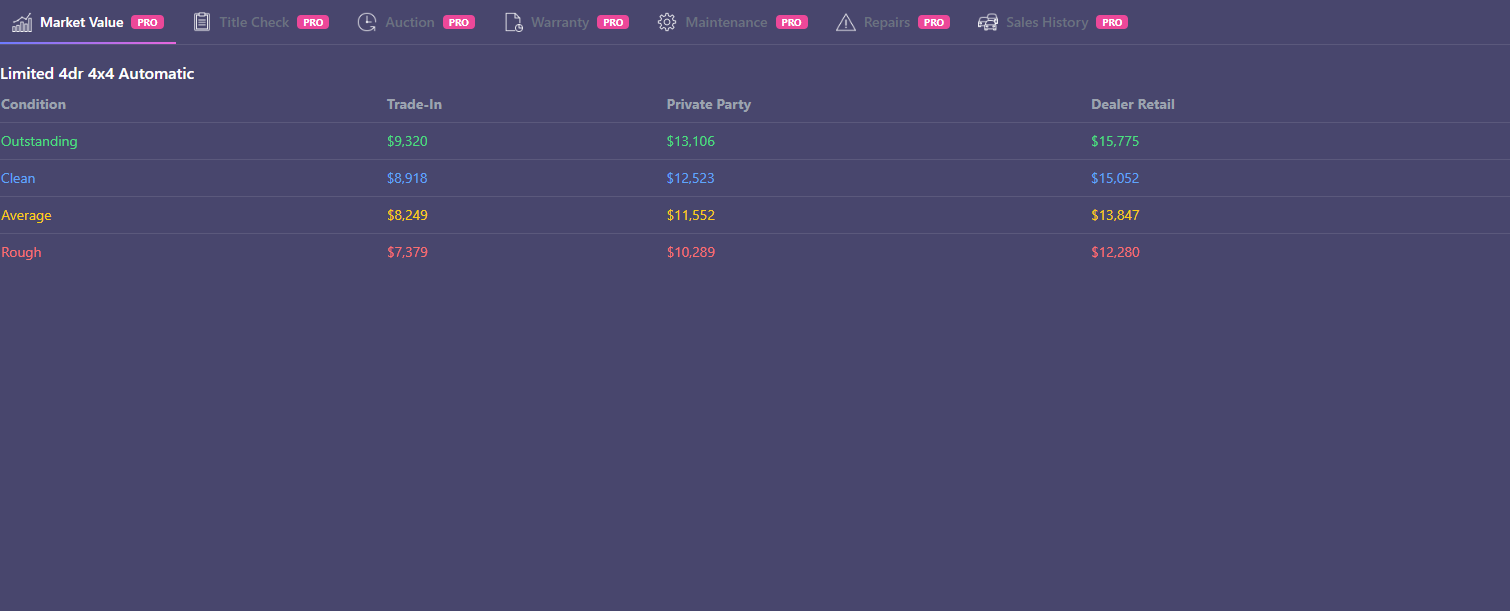 Market Value tab showing condition-based pricing table
Tab 2: Title Check
Button: Check Title Description: Check for salvage, flood, lemon, and odometer records.
Two possible results: – Clean: Green banner reading “Clean Title — No Salvage Record” – Salvage: Red banner with the cause (flood, collision, theft recovery, etc.) and dates
Clean or not clean. That’s it.
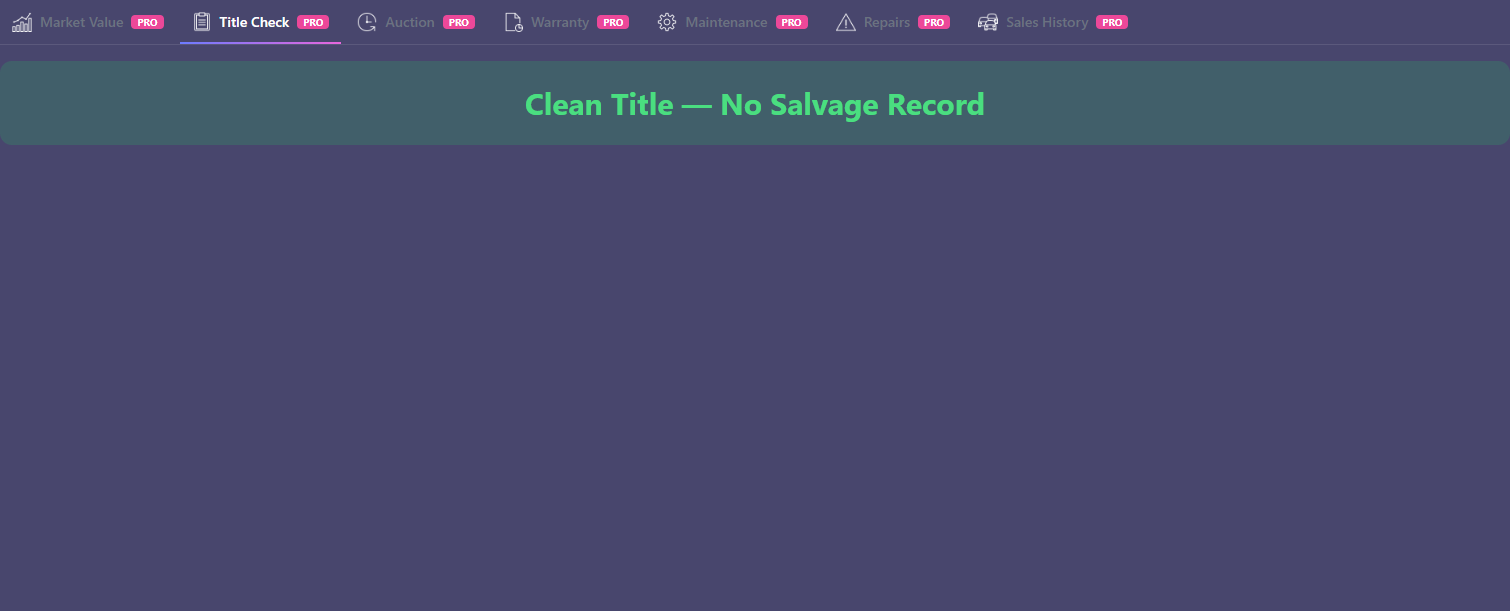 Title Check showing a clean title with green banner
Tab 3: Auction
Button: Load Auction History Description: Search auction records with photos, specs, and sale details.
Shows auction record cards if the vehicle has been through wholesale auctions (Manheim, Copart, IAAI, etc.).
“No auction records found” is normal. Most privately owned vehicles never go through auction. No records usually means the vehicle was sold dealer-to-owner or owner-to-owner. That is a good sign, not an error.
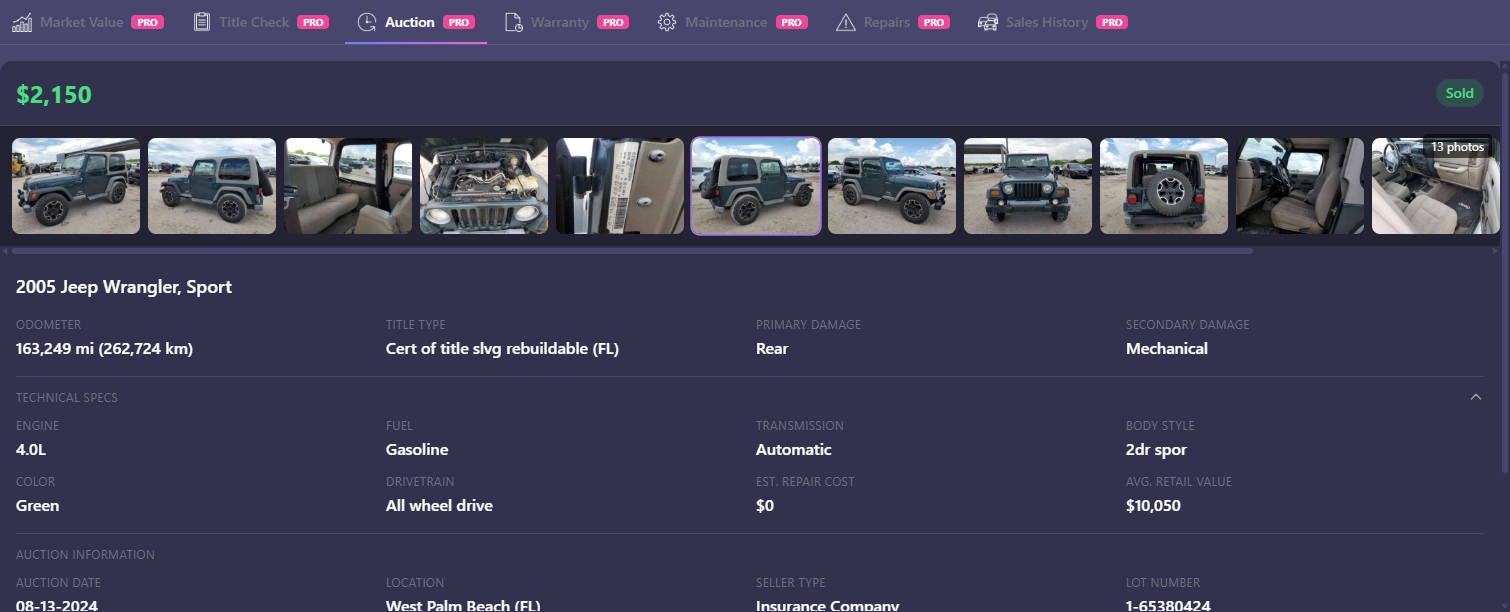 Auction tab — many vehicles will show “No auction records found”
Tab 4: Warranty
Button: Check Warranty Description: View factory warranty coverage details.
Shows a list of warranty items with green shield icons — e.g. “Basic: 3 years / 36,000 miles,” “Powertrain: 5 years / 60,000 miles.”
Important: This shows the factory warranty terms for that year, make, and model. It does NOT tell you whether this specific vehicle’s warranty is still active. You need the original purchase date and current mileage to figure that out yourself.
Requires NHTSA VIN decode data to be available.
 Warranty tab showing factory coverage with green shield icons
Tab 5: Maintenance
Button: Load Maintenance Schedule Description: View recommended maintenance intervals and service items.
Shows expandable interval cards (e.g. every 5,000 miles, every 15,000 miles). The first three intervals are expanded by default. Click to expand or collapse the rest.
Tab 6: Repairs
Button: Load Common Repairs Description: See common repairs with independent shop and dealer cost estimates.
Shows repair cards listing the repair name and cost estimates. The first 10 repairs display by default. If there are more, a “Show all (X) repairs” button appears at the bottom.
Tab 7: Sales History
Button: Load Sales History Description: View past sales records with prices, locations, and conditions.
Each record shows: sale date, price (in green), odometer reading badge, location, and condition.
“No sales records found” is normal. Same as auction — private sales between individuals rarely appear in these databases.
“No Data” Is Not an Error
Some tabs will return no results for certain vehicles. This is expected. Data coverage depends on:
- Vehicle age — Newer vehicles have less history.
- Dealer network exposure — Vehicles that stayed in private hands leave fewer records.
- Geographic region — US coverage is strongest.
- Vehicle type — Common consumer vehicles have better coverage than specialty or commercial vehicles.
If a tab returns nothing, it means the third-party database has no records for that VIN. The system is working correctly.
Related Articles
Questions? support@obdai.app