



ARIA is OBDAI’s Automotive Reasoning & Intelligence Agent. Ask a question in ordinary language, and ARIA can bring together available codes, freeze frames, readiness, monitor tests, live readings, counters, and saved history to explain what the evidence means—and what to check next.
You do not have to begin with a PID list. Start with “Why is my check-engine light on?”, “It hesitates when warm”, or “Am I ready for an emissions test?” ARIA can explain a result, ask a useful follow-up, and help gather the readings needed to narrow the possibilities. The raw screens remain available when you want to inspect the evidence yourself.
For supported newer OBDonUDS vehicles, OBDAI PRO + GEN2 brings that workflow to SAE J1979-2 diagnostics. Check compatibility and compare plans; classic ARIA use is not exclusive to PRO.
Start a conversation
- Connect a compatible adapter and let OBDAI collect a vehicle session. A question alone is not a fresh scan.
- Open Aria, tap Ask ARIA…, type your question, and tap the send arrow. Stationary Check, Start a Drive Test, or Emissions Test can also start the conversation when shown.
- Reply in the same conversation: “What makes that more likely?”, “Explain fuel trim without jargon”, or “I checked the connector; it looks clean. What next?” You do not need to repeat the whole problem at every turn.
Describe when the symptom happens and any repair or physical test you have performed. Distinguish what you measured from what you suspect. If disconnected, ask about saved evidence or general guidance and make that limitation explicit.
Speak a question and read the answer
The microphone controls spoken input. The Voice ON/OFF chip controls whether ARIA speaks its answers.
| What you want | What to do |
|---|---|
| Type and read | Leave Voice OFF, type in Ask ARIA…, then send. |
| Speak and read | Leave Voice OFF, tap the microphone, and speak one question. The recognized question sends when speech recognition finishes; ARIA replies as text. |
| Speak and hear one answer | Turn Voice ON, then use the microphone. ARIA gives a spoken reply; voice mode favors a shorter, conversational answer. |
| Keep talking between turns | Tap the voice-wave conversation button beside the mic. OBDAI listens, sends, speaks the answer, and listens again. Tap the mic or conversation button to stop. |
Try voice input with text output: leave Voice OFF, tap the mic, and say, “Explain the current codes in plain English and tell me what information you still need.” Read the answer quietly, then type or speak a follow-up. This is the one-shot microphone workflow, not hands-free conversation mode.
Conversation mode temporarily enables spoken replies and restores your previous preference when you exit. Allow microphone/speech permissions when prompted. If recognition is wrong, correct it in a follow-up; if speech is unavailable on your device, use text. Set up while parked and review after stopping safely—do not interact with the app while driving.
Ask ARIA to collect the missing evidence
Try: “Check what this vehicle supports. Select the useful readings for this symptom, explain why you need them, and tell me when we have enough new data.”
With supported vehicle data and an eligible plan, ARIA can select parameters for logging instead of leaving you to build the list yourself. It can retrieve session readings and freeze frames, check a live value, or request a fresh Mode 6 snapshot. Selection is not collection: the adapter must be connected, the vehicle must supply the data, and the relevant operating conditions must occur.
After ARIA explains its recommended readings, just tell her “Set it up for me”—type it or say it. You can also tap the crown-marked suggestion when shown; the button is a shortcut, not a requirement. Assisted setup is available with Premium or PRO, or you can add the readings in Parameters yourself. Read ARIA’s confirmation before beginning the sample; asking for a test does not mean logging has already been configured.
After collecting a safe, appropriate sample, say “I finished the test. Compare the new readings with the earlier ones.” Ask ARIA to identify the period it used. Mixing old and post-repair samples can obscure what actually changed.

A real conversation: from lean codes to a retest
This anonymized account comes from an April 2026 customer conversation about a 2015 Chevrolet Express 2500 4.8L. Quoted user turns are from the transcript; the connecting explanations are editorial summaries. It is not a scripted demo or a guarantee for another vehicle.
1. “Start a Drive Test” → “Set it up for me”
ARIA considered P0101, P0171, P0174, and P0449 together. It selected supported readings including both banks’ fuel trims, RPM, speed, airflow, throttle position, and manifold pressure. The question was whether the pattern suggested air metering, an intake leak, or fuel delivery—not simply what P0101 means.
2. “I finished the drive test” → “I found an intake leak”
ARIA reported long-term fuel trims reaching about +29.7% on both banks and explained why a shared cause mattered. It initially ranked a MAF issue first and an intake leak next, rather than making a certain leak diagnosis. The user inspected the vehicle and reported the leak. That physical finding changed the evidence.
3. “Run a confirmation drive test” → “Run one final clean test”
ARIA compared follow-up readings with earlier data, noticed the session still included pre-repair samples, and asked for a cleaner comparison. In its final response, it reported post-repair long-term trims around +8.6% to +10.9% in the cited snapshots: a marked improvement, not perfect zero correction.
The repair report became a question the next data collection could test. Those readings belong to this session; they are not universal pass/fail thresholds.
4. A separate EVAP issue needed different proof
After the user replaced the vent solenoid, ARIA did not claim the drive proved that repair. It said the new EVAP evidence was sparse, readiness was incomplete, and generic OBD data could not establish electrical integrity. The user then reported manually testing the old solenoid and finding it faulty.
The transcript supports an intake-leak finding, improved fuel-trim readings, and a user-confirmed faulty solenoid. It does not establish a later completed EVAP monitor or emissions-test pass. Clearing codes is not a shortcut to either: it can reset readiness and erase useful evidence.
Add a photo when words are not enough
Tap + beside the message field, then Take Photo or Choose from Library where your device supports it. Review the preview, remove a wrong image with its ×, and send the image with your question. The app supports up to five images per message.
Try: “This is the intake hose I inspected after the lean-code discussion. What visible damage or loose connections should I check, and does that possibility fit the fuel-trim pattern?” A readable component label or repair invoice can also add context. Remove names, addresses, VINs, license plates, and account details before sharing.
A photo adds visible evidence. It does not measure pressure, prove a circuit is sound, or unlock an unsupported module. Ask for a closer view or a physical test when the picture is inconclusive.
Questions that grow with your confidence
These are suggested prompts, not promises of a particular answer. Results depend on your vehicle, connection, captured evidence, and plan.
- Beginner: “What does this code mean in plain English? Is it a symptom or proof that a part failed?”
- Symptom: “It hesitates only after warming up. What does the evidence suggest, and what should I tell you about when it happens?”
- Collect evidence: “Check supported parameters and set up useful logging for the hesitation. Explain what each reading helps distinguish.”
- Readiness and Mode 6: “Combine readiness across responding modules with codes, freeze frames, monitor-test results, and since-clear counters. What is incomplete, and what can you not conclude yet?”
- Follow-up: “I repaired the intake leak. Compare a fresh sample with the earlier session. Separate improvement from evidence that the fault is fully resolved.”
- Shop-level: “Build a prioritized test plan from stored, pending, and permanent codes; freeze-frame conditions; readiness; Mode 6 measurements and limits; live trends; and available history. Separate observations, hypotheses, missing evidence, and the next test that would change your ranking. Do not assume an unsupported PID is normal.”
What a useful answer looks like
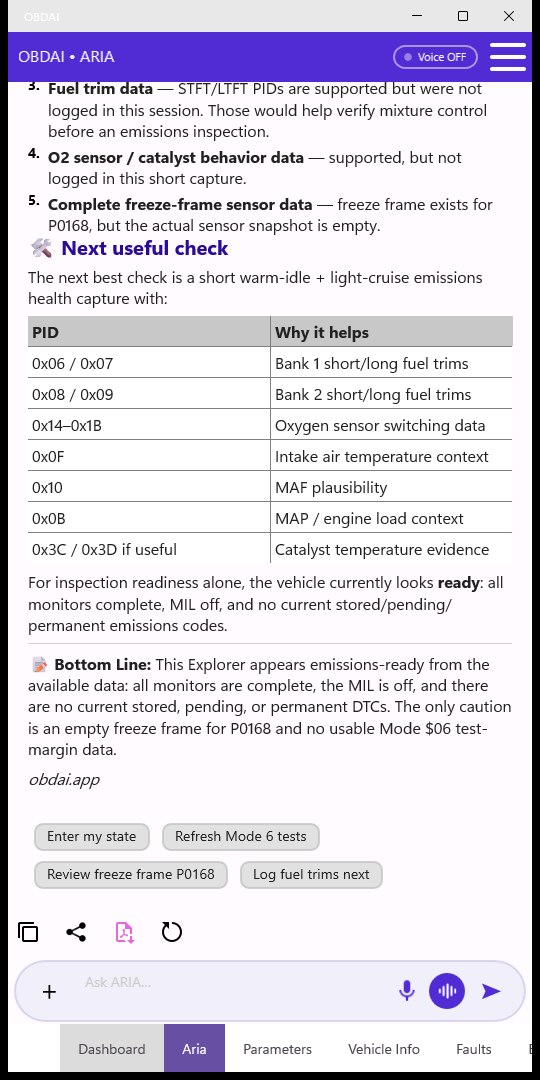
ARIA can explain a code, turn a symptom into a test workflow, interpret readiness, relate live readings, or compare saved sessions. A useful answer says what was observed, why it matters, what remains uncertain, and what to do next.
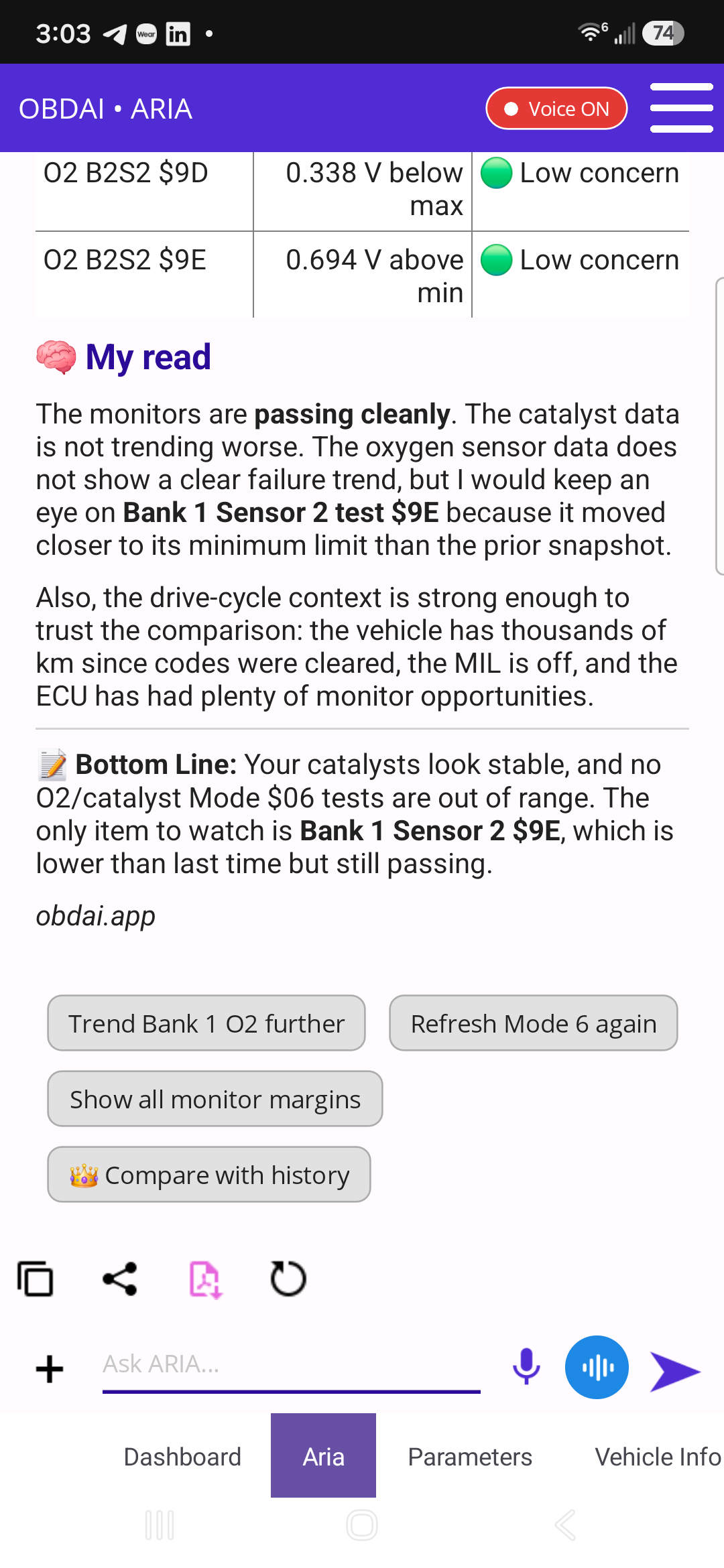
Passing Mode 6 measurements do not predict that a component cannot fail. Ask whether the same test, module, units, and conditions are being compared. Readiness “complete” is not an inspection certificate. For a no-code complaint, clean emissions data does not rule out a mechanical or electrical fault.
Know the boundaries—and keep asking
ARIA interprets evidence; it does not physically inspect the vehicle or guarantee a repair. Missing readings must stay missing, not become reassuring invented values. Some checks need a technician, manufacturer service information, a meter, or a manufacturer-specific scan tool.
Plan limits affect usage, history, and assisted logging. Premium can view saved ARIA conversations in the web dashboard; PRO can continue them there. Saved browser evidence is not a remote live connection to an unplugged vehicle. OBDonUDS beta requires PRO + GEN2 and a supported vehicle/protocol; it does not unlock every ABS, airbag, body, or security module.
Connect, open Aria, and ask “What does my vehicle’s evidence say, and what should we check next?”