Understand the relationships
ARIA connects monitor results, operating conditions and parameter behavior.

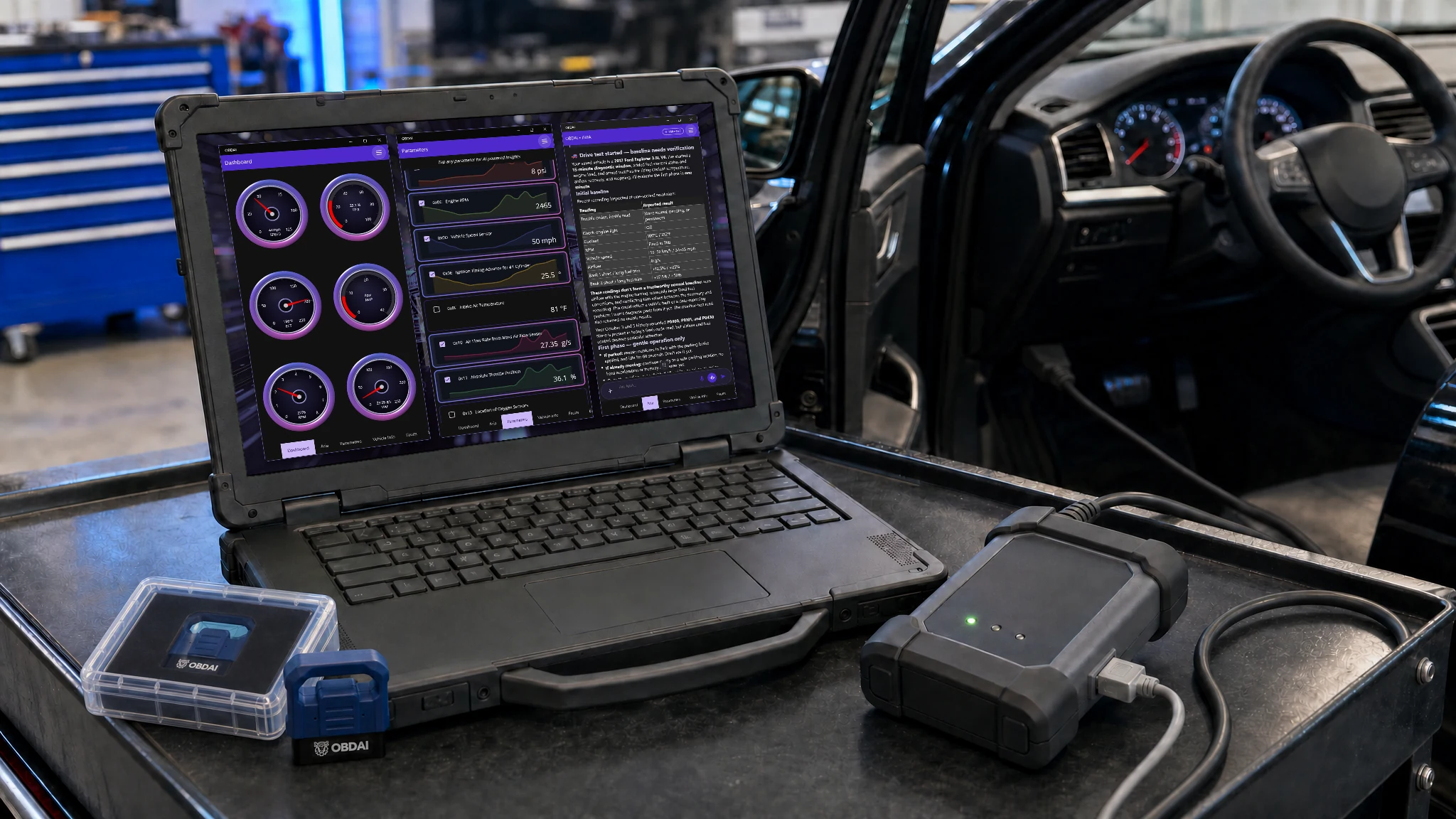
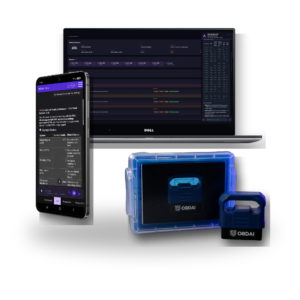
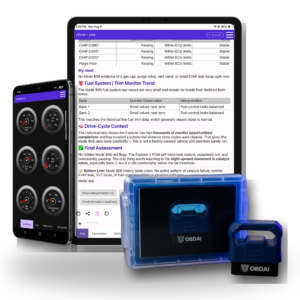
OBDAI Ultra — J2534 for Windows + GEN2 + Annual Service
Connect your J2534 VCI on Windows and put ARIA to work on the next problem car. She selects the readings, follows the evidence and directs the next test. As soon as you get your license key, download the Windows app and fire it up.
$499 first year with shipped GEN2 · $365/year service renewal
VCI, PC and tablet not included. GEN2 wireless adapter included.
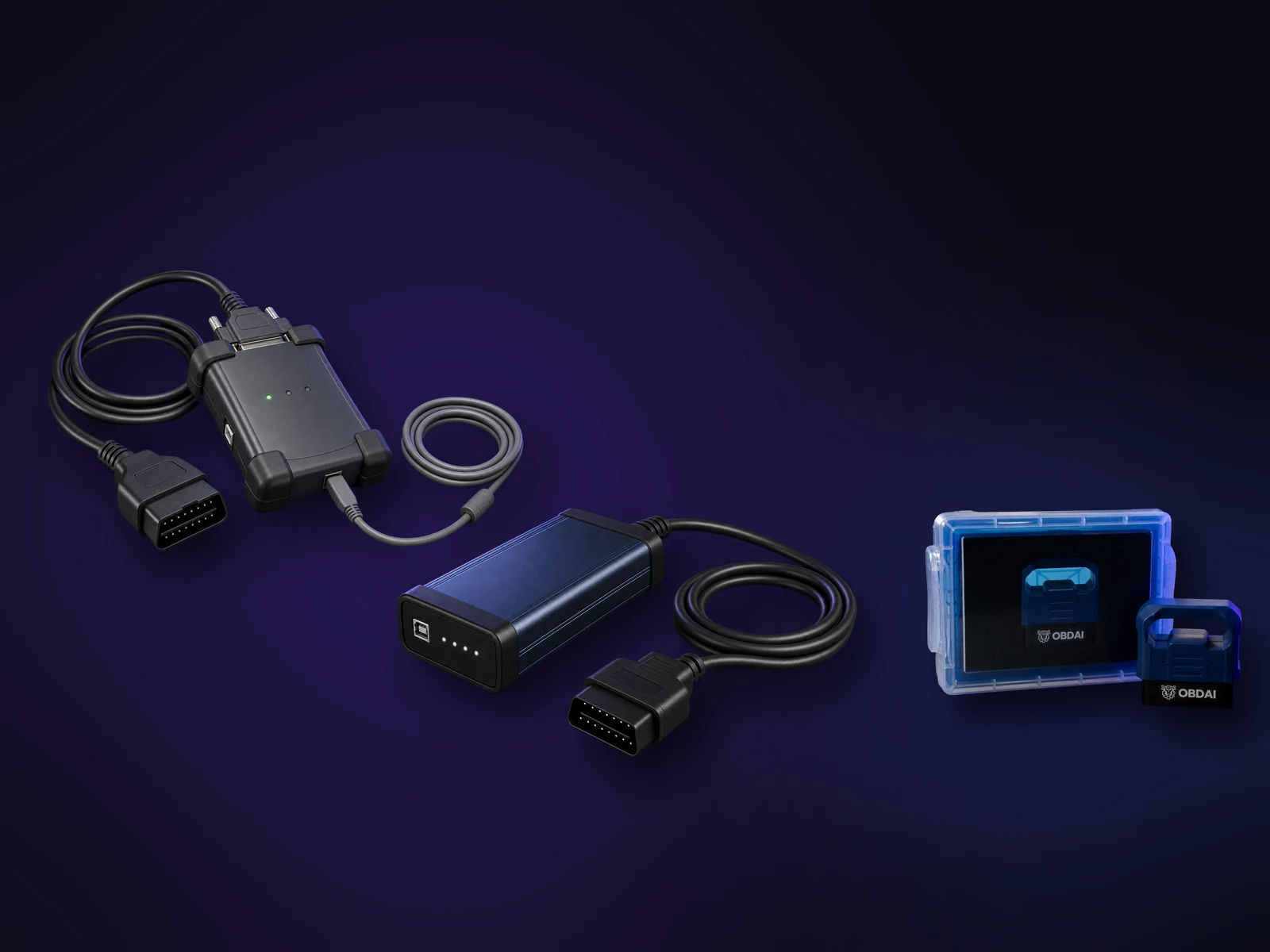
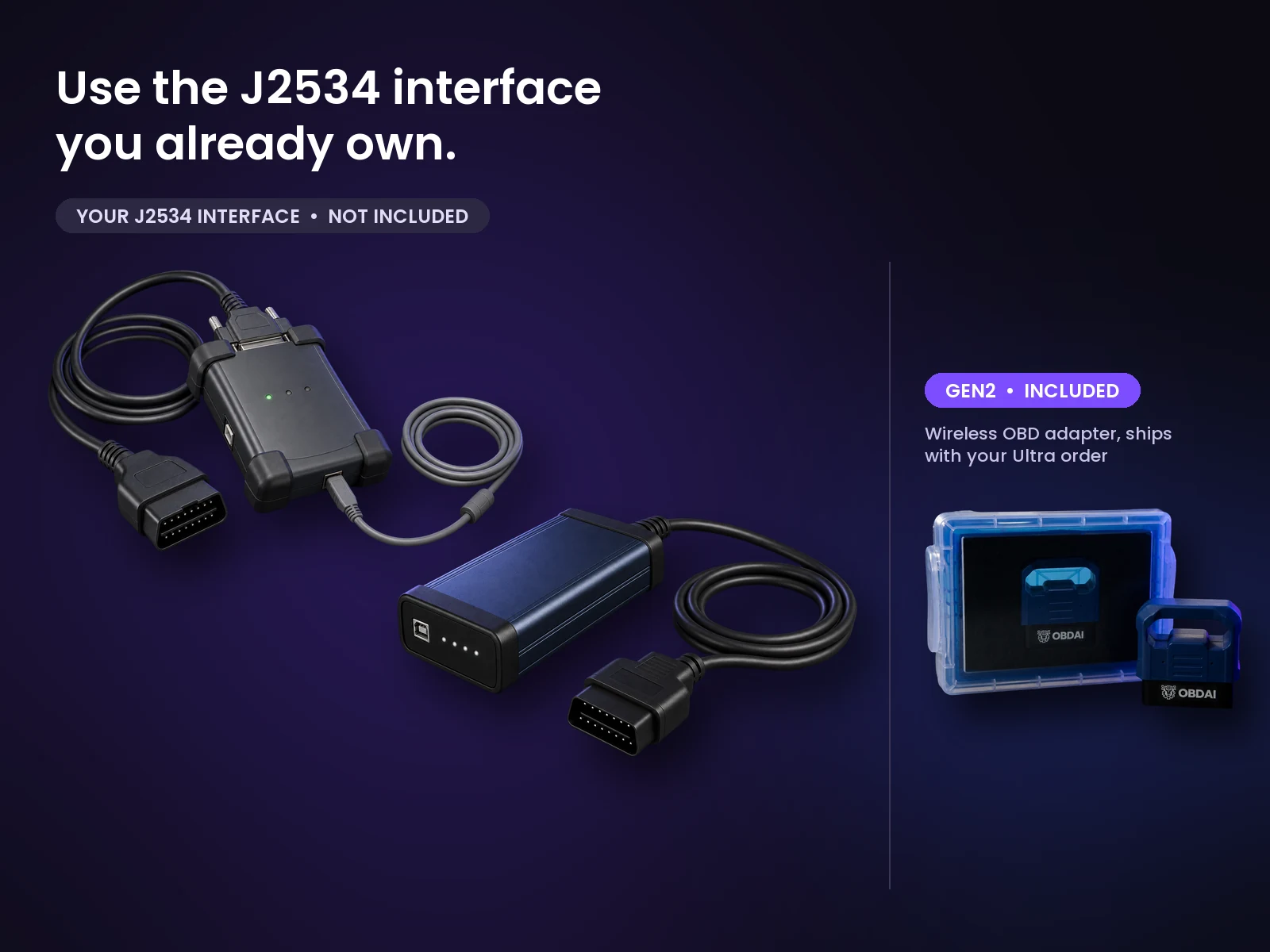
OBDAI Ultra works with Windows J2534-compatible interfaces. OBDAI implements the J2534 04.04 and 05.00 standards, so compatibility extends across manufacturers. Common interfaces include the devices below.
Ready for upcoming OEM parameters. Some upcoming manufacturer-specific parameters will require a compatible J2534 interface. Others will also be available through GEN2.
| Brand or family | Look for your interface |
|---|---|
| Bosch / OTC | Mastertech M-VCI / Mastertech VCI; Mastertech II / MTECH2; Bosch Flasher Pro; MTS 6531; GVCI-MX / MTS 6534; MTS 6512, 6513, 6516 and 6517; ADS-series VCI; OTC Evolve VCI |
| General Motors | GM MDI; GM MDI 2 / EL-52100 |
| Ford | VCM II / VCM2; VCM 3 / VCM III; VCMM |
| Honda / Acura | Bosch MVCI; DENSO DST-i; DST-nano; Antares Capsule / HAC |
| CarDAQ / Drew Technologies / Opus IVS | CarDAQ-Plus; CarDAQ-M / Mega-CAN; CarDAQ-Plus 2; CarDAQ-Plus 3; CarDAQ Pro; SuperGoose-Plus; DrewLinQ |
| Mongoose / Toyota Techstream Lite | Mongoose ISO/CAN; MongoosePro Chrysler, Ford, GM2, Honda, Jaguar/Land Rover, Nissan, Toyota2 and VW/Audi; Mongoose-Plus Ford2, GM3, Honda2, Subaru, Nissan2, VW/Audi, ISO/CAN3 and Chrysler2; Mongoose-Plus MFC / MFC3 / Toyota3; MongoosePro MFC2; Toyota Techstream Lite with its Mongoose interface |
| Snap-on | Pass Thru Pro II; Pass Thru Pro III; Pass Thru Pro IV / EETA113D |
| Matco | MDMaxBox / MDMAXBOX; MaxSync |
| DENSO | DST-i; DST-nano; DST-010 / DN-DST-010 variants for Toyota, Honda, Daihatsu, Subaru, Mazda and Hino |
| DG / AutoEnginuity / Cardone | VSI-2534 / VSI-J2534; VSI NxGen; VSI NxGen PLUS; d-briDGe; d-briDGe PRO; PX3; Cardone FLASH2 |
| Autel | MaxiFlash Pro; MaxiFlash Elite; JVCI; JVCI+; VCI; VCMI; VCMI2; XLink |
| LAUNCH | J-Box2; SmartLink C; SmartLink C V2.0; SmartLink C V3.0 |
| TOPDON | RLink J2534; RLink Lite; RLink X7; RLink X3; Phoenix MDCI Pro |
| THINKCAR / XTOOL | THINKCAR ThinkLink; MUCAR 892BT PRO VCI; XTOOL XVCI MAX / J2534X; XPortal |
| Scanmatik / Tactrix | Scanmatik SM2; SM2-PRO; SM3; Tactrix Openport 2.0 |
| ACTIA / Controller Technologies | ACTIA PassThru+ XS 2G / XS2G; CTC Pulsar; UCAN; UCAN2; VehicleBox; DRB+ |
Install your interface manufacturer’s Windows J2534 driver, then select J2534 in OBDAI.
Choose J2534 in the OBDAI Windows app and you get the same full OBDAI workflow you’d get from our own adapters, running through the interface you already trust.
Setup help. Contact support@obdai.app for OBDAI setup help. Get VCI drivers and firmware updates from your interface manufacturer.
OBDAI Ultra on Windows
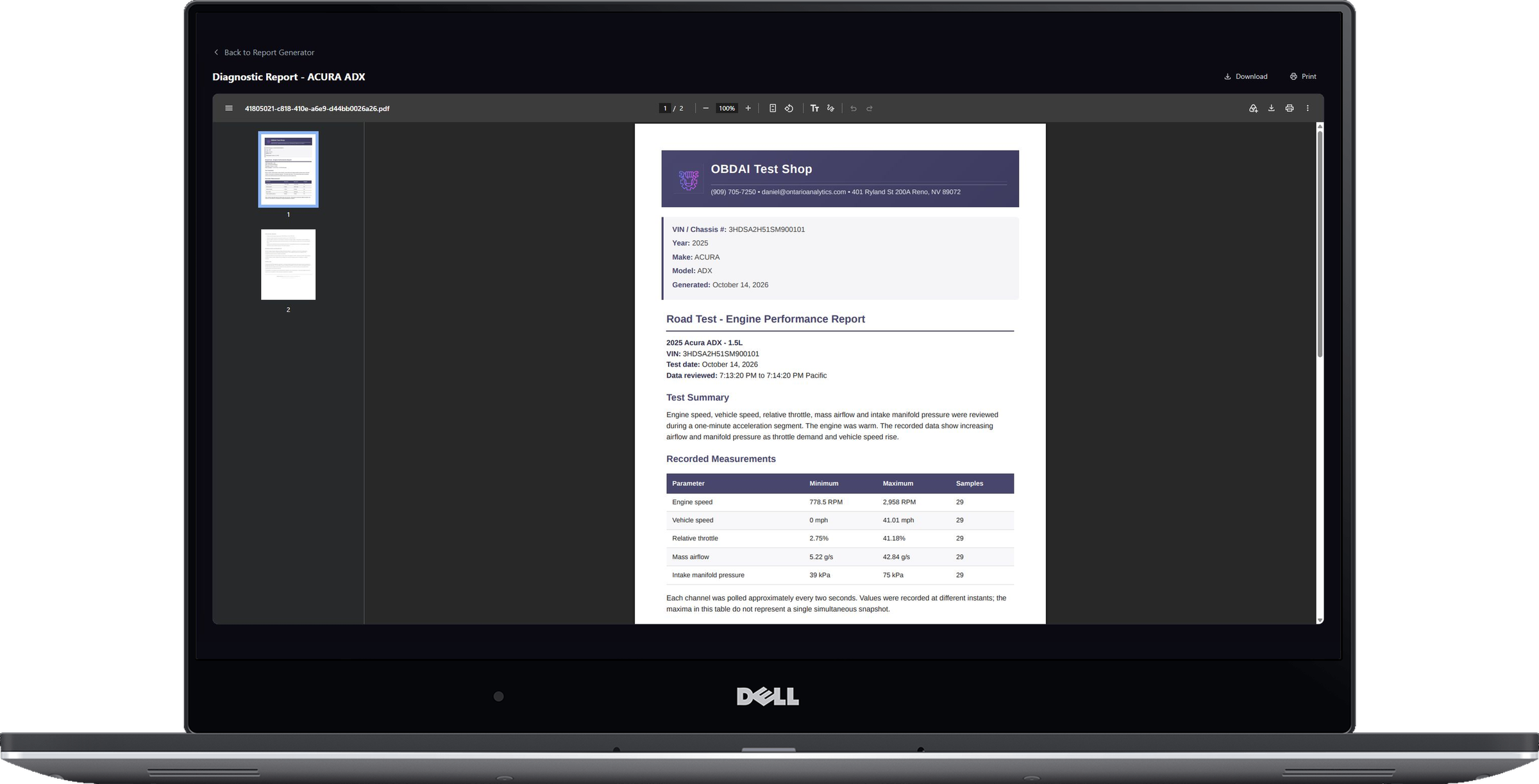
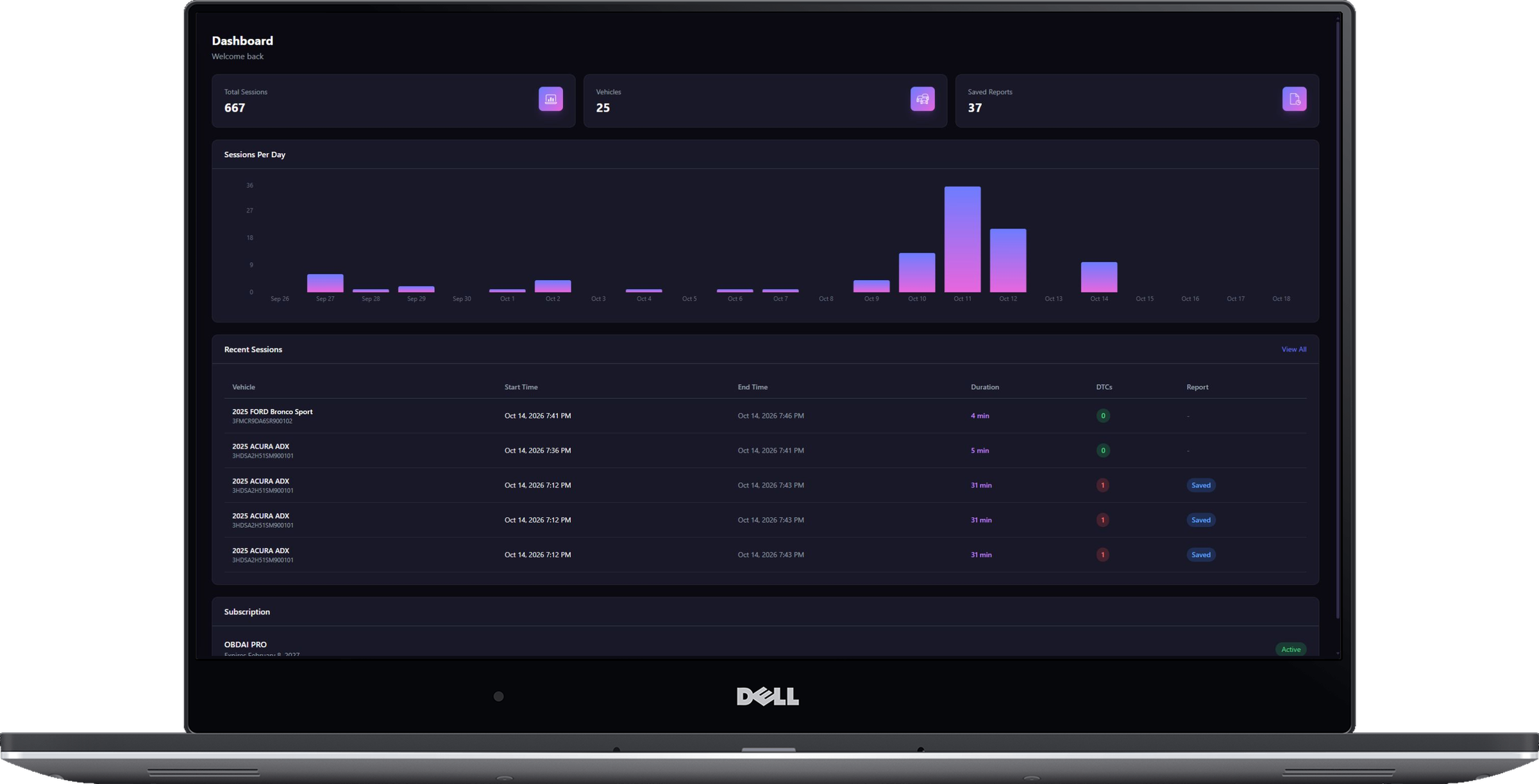
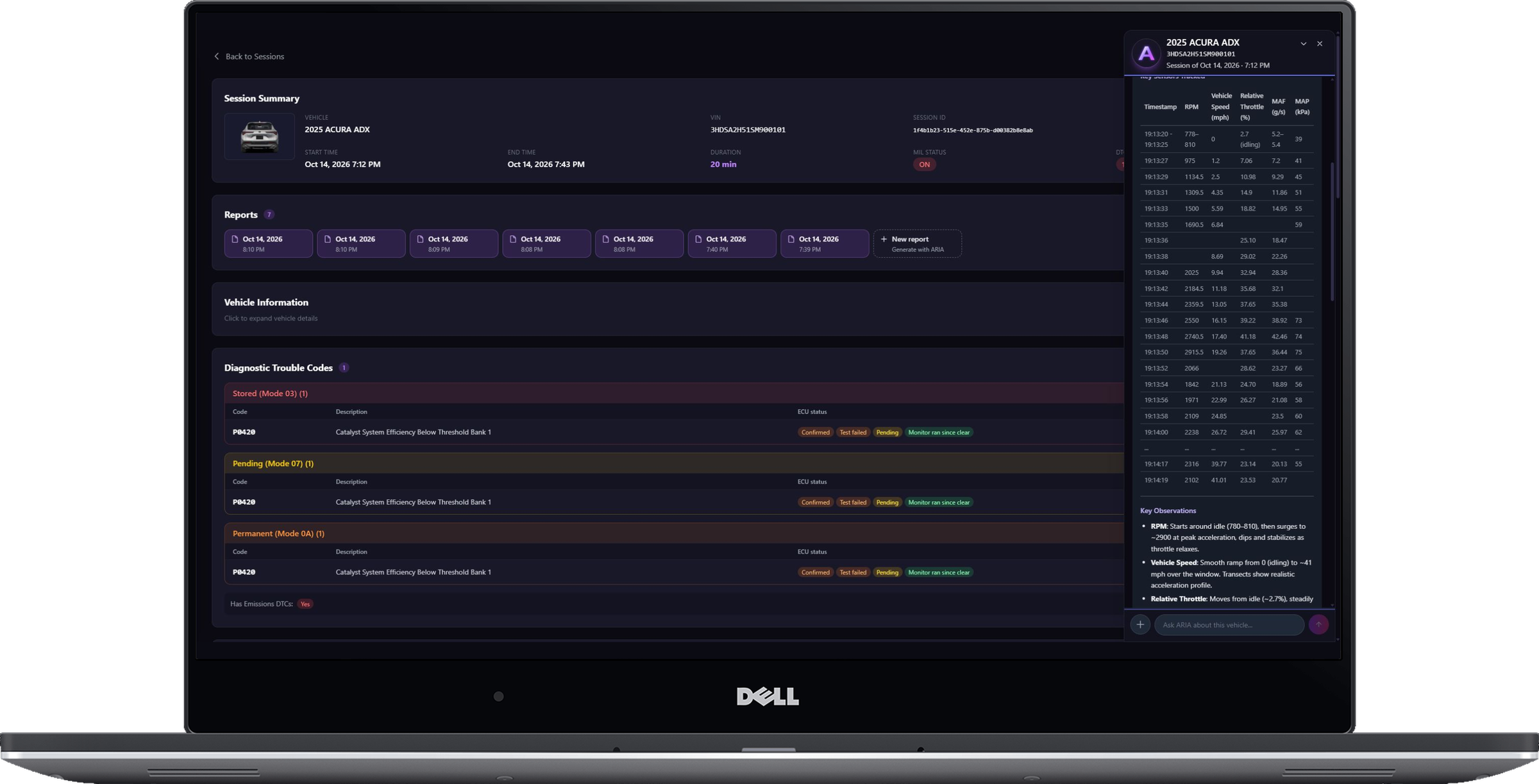
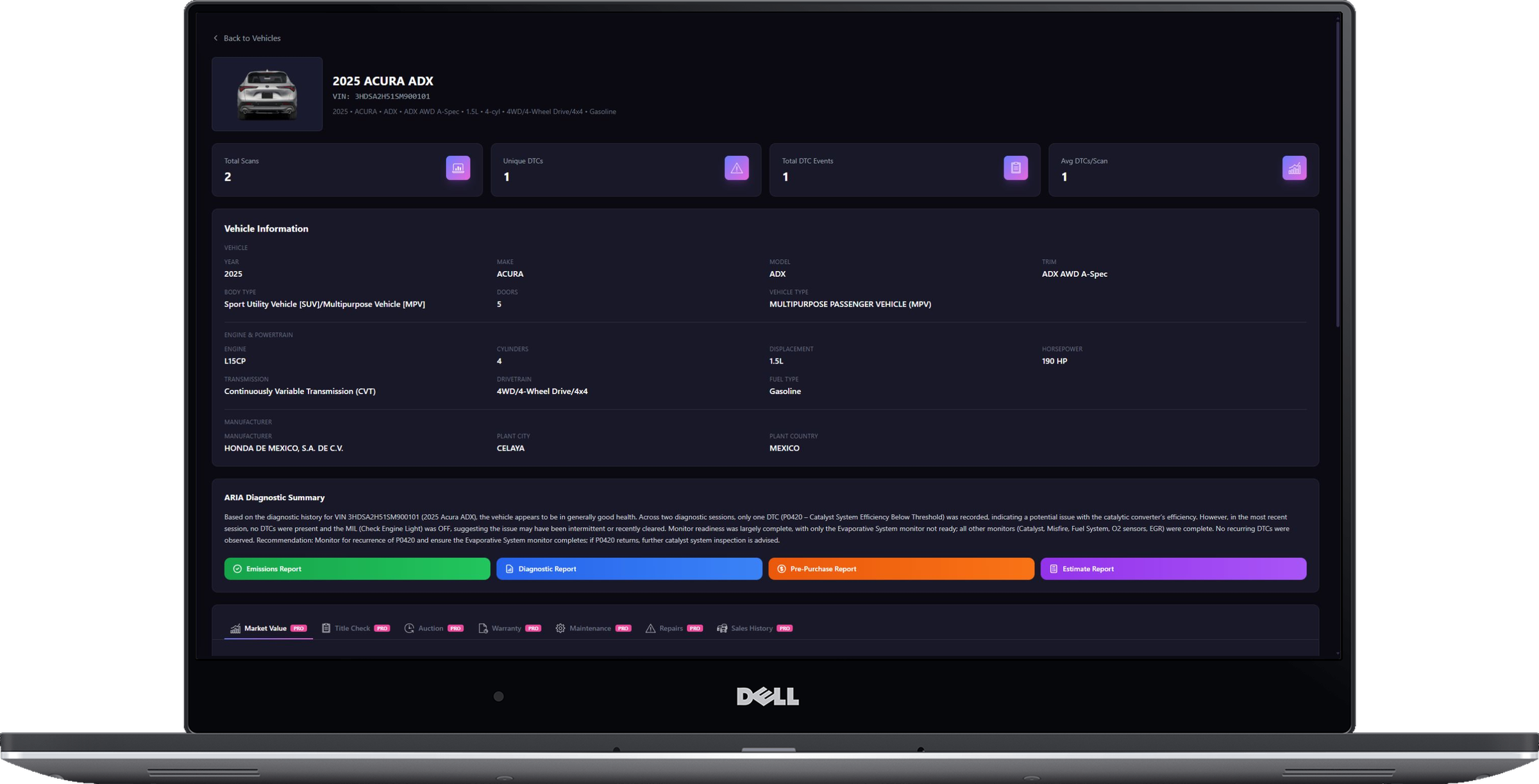
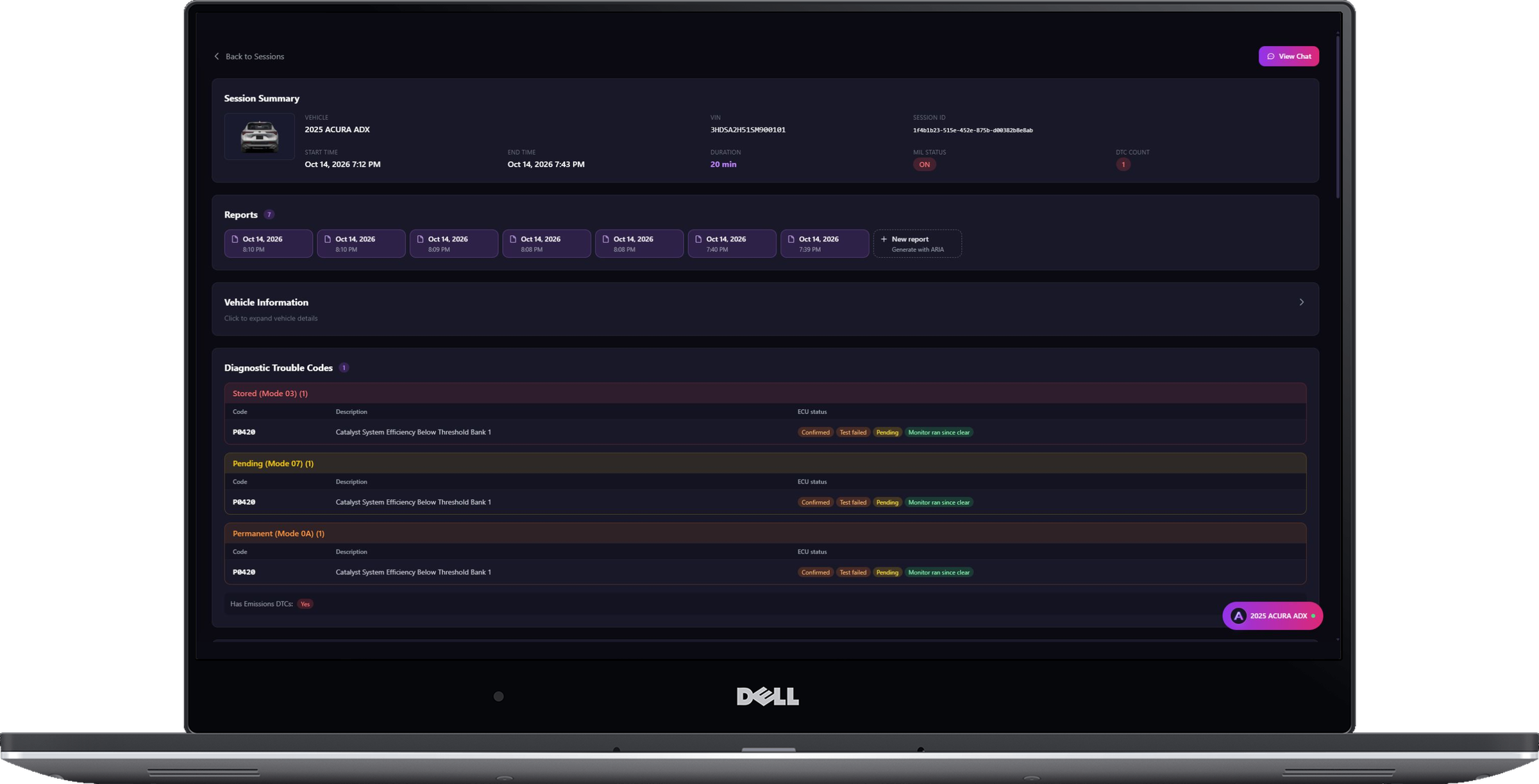
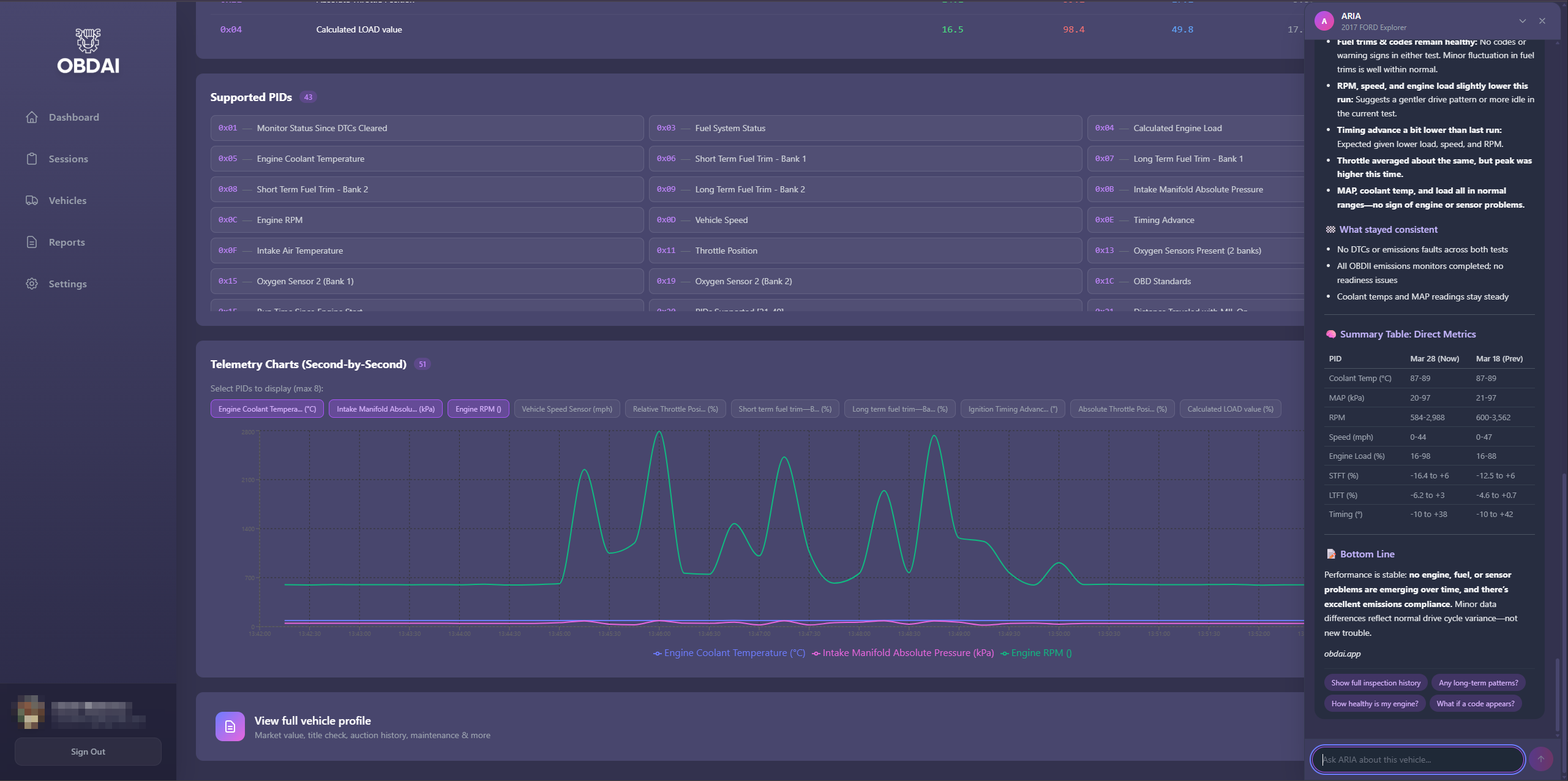
Real OBDAI screens showing the J2534 connection, vehicle data and ARIA on Windows. Tap any screen to see it full size.
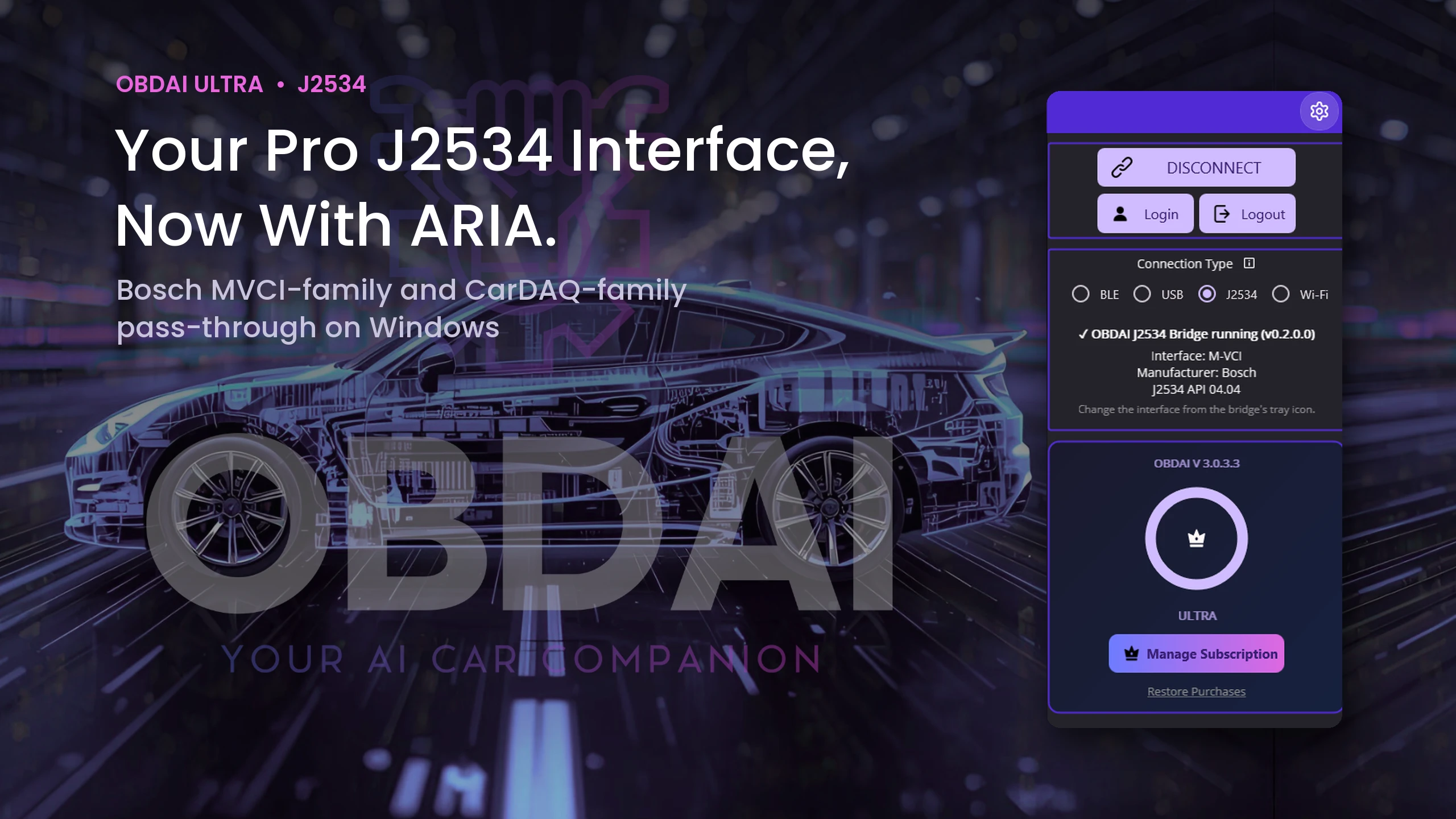
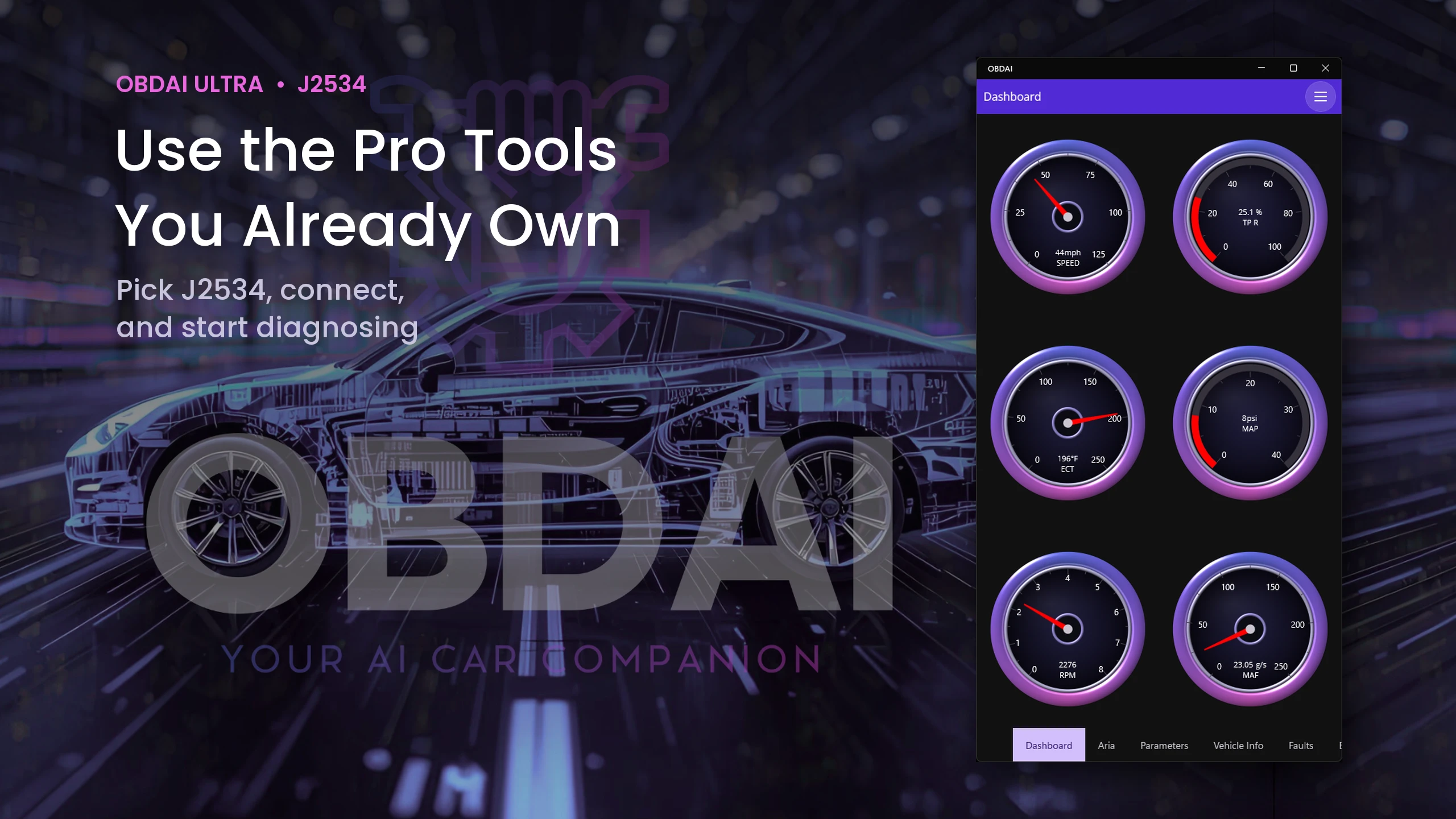
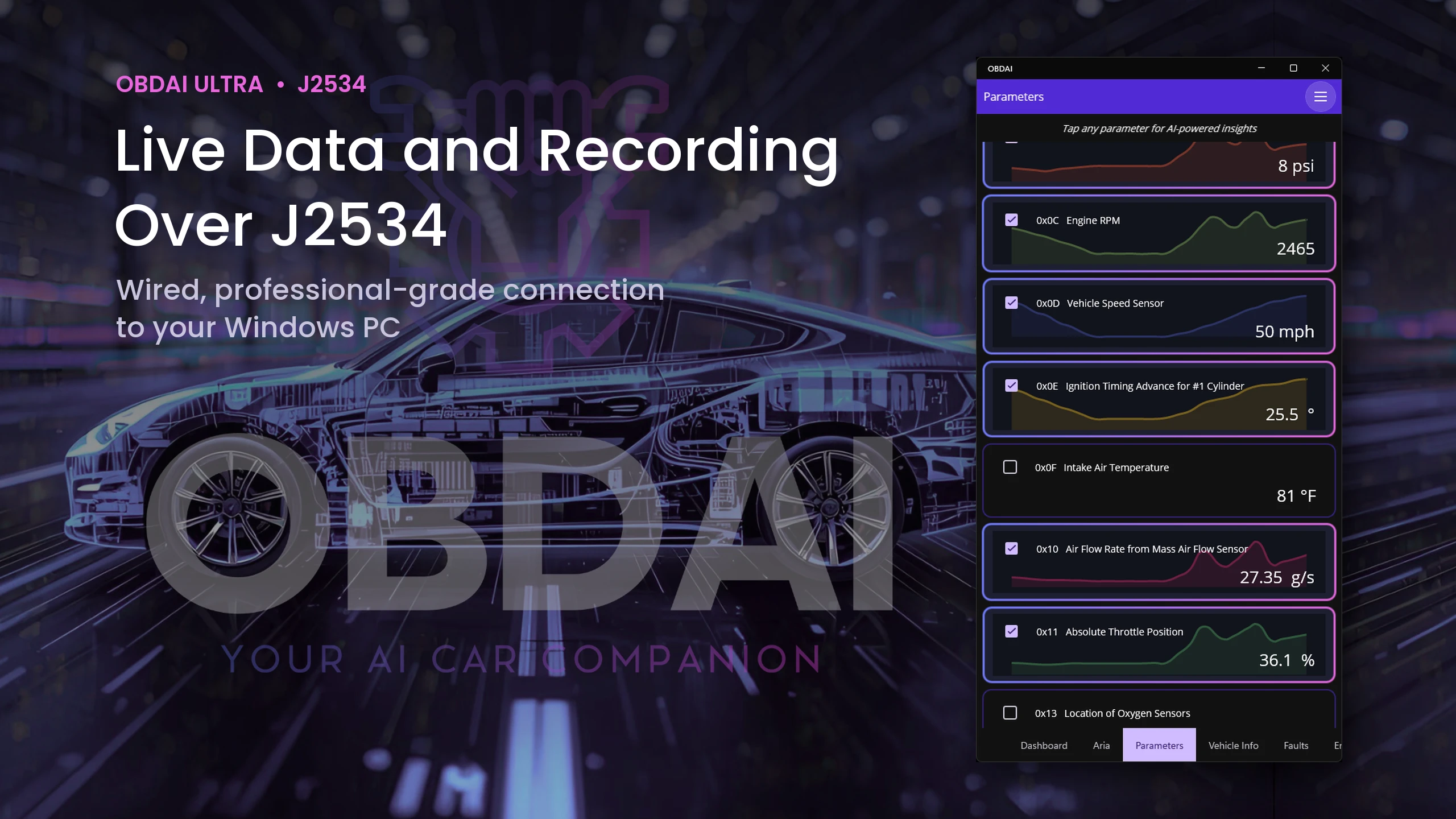
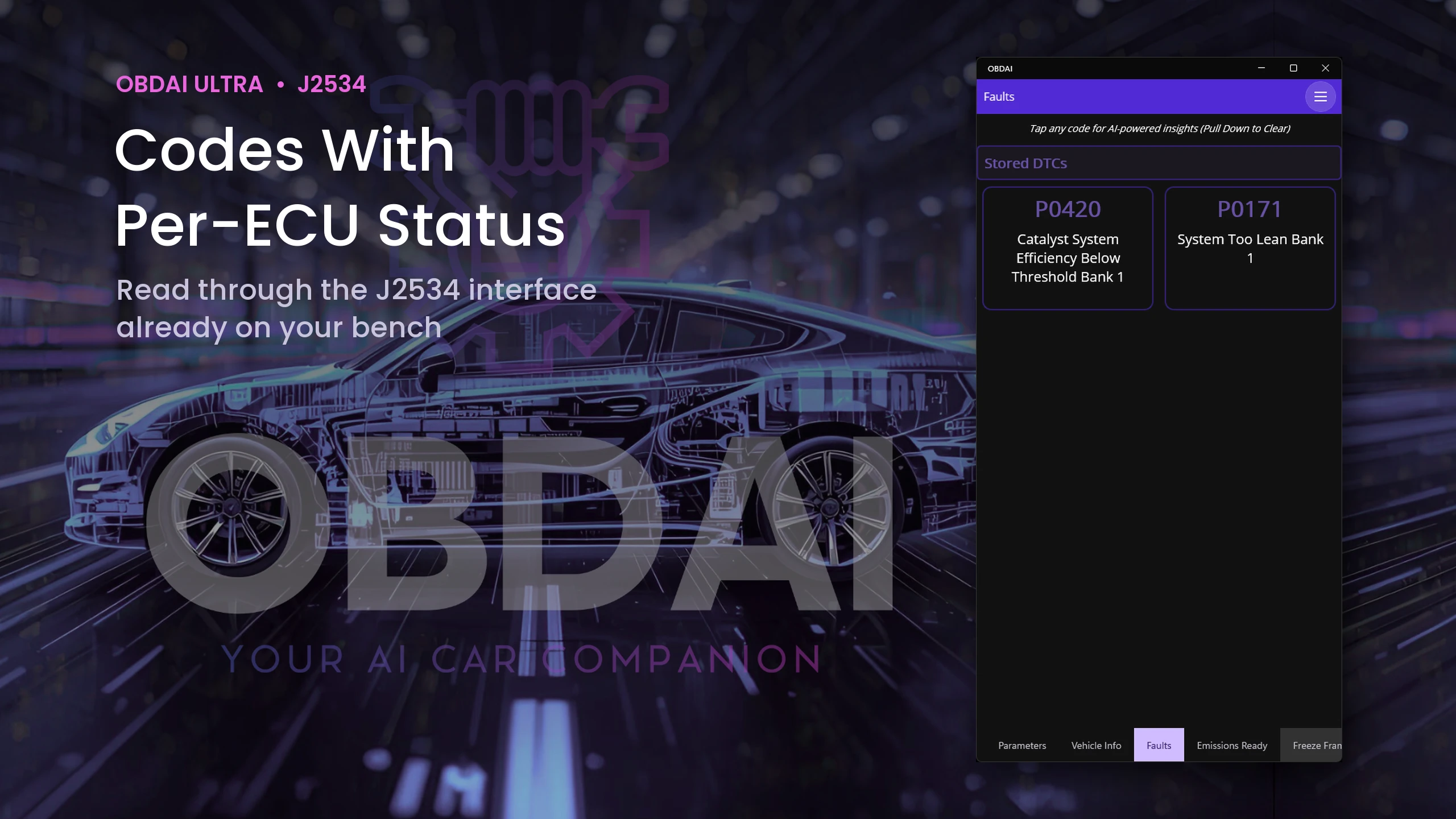
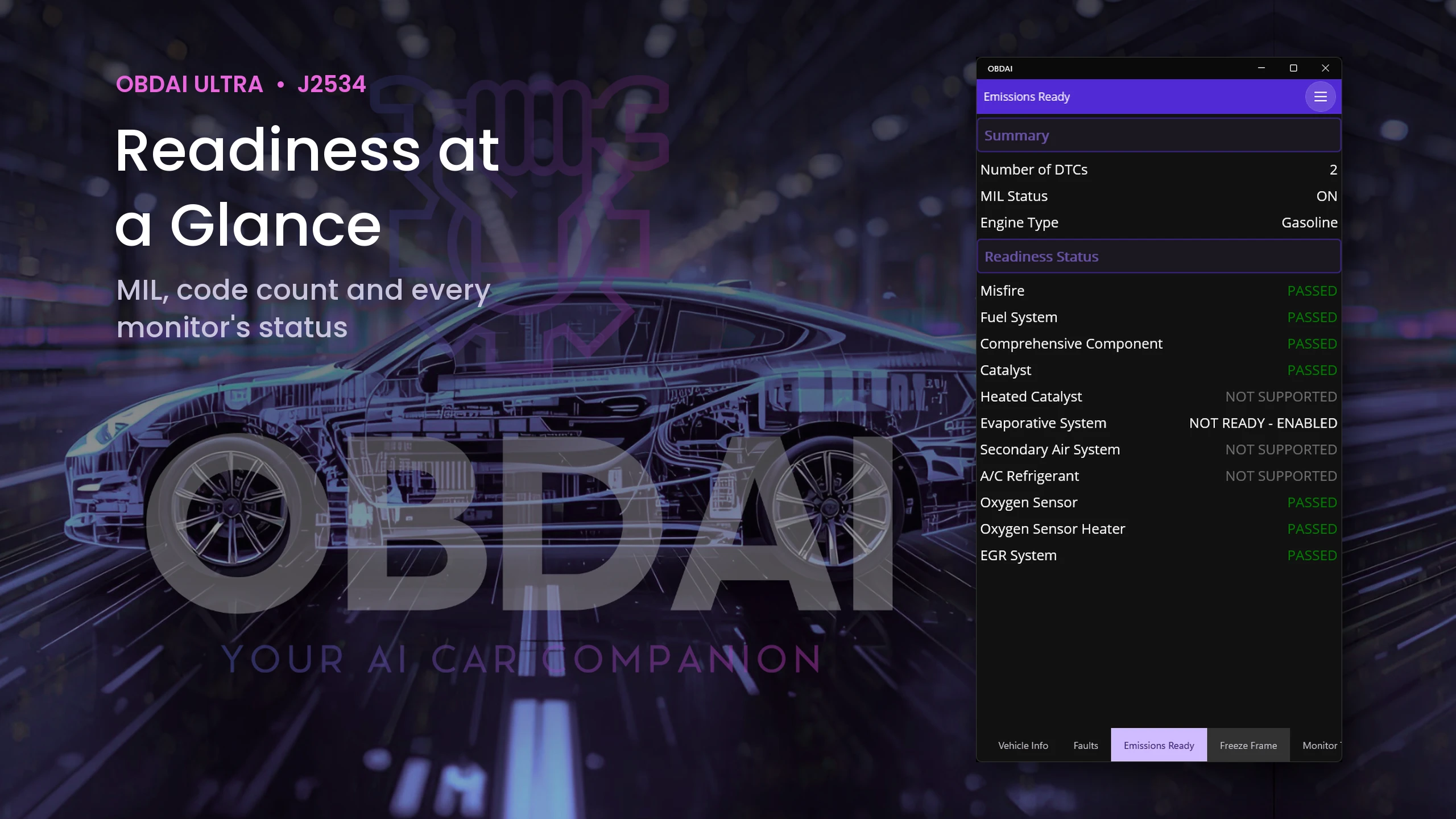
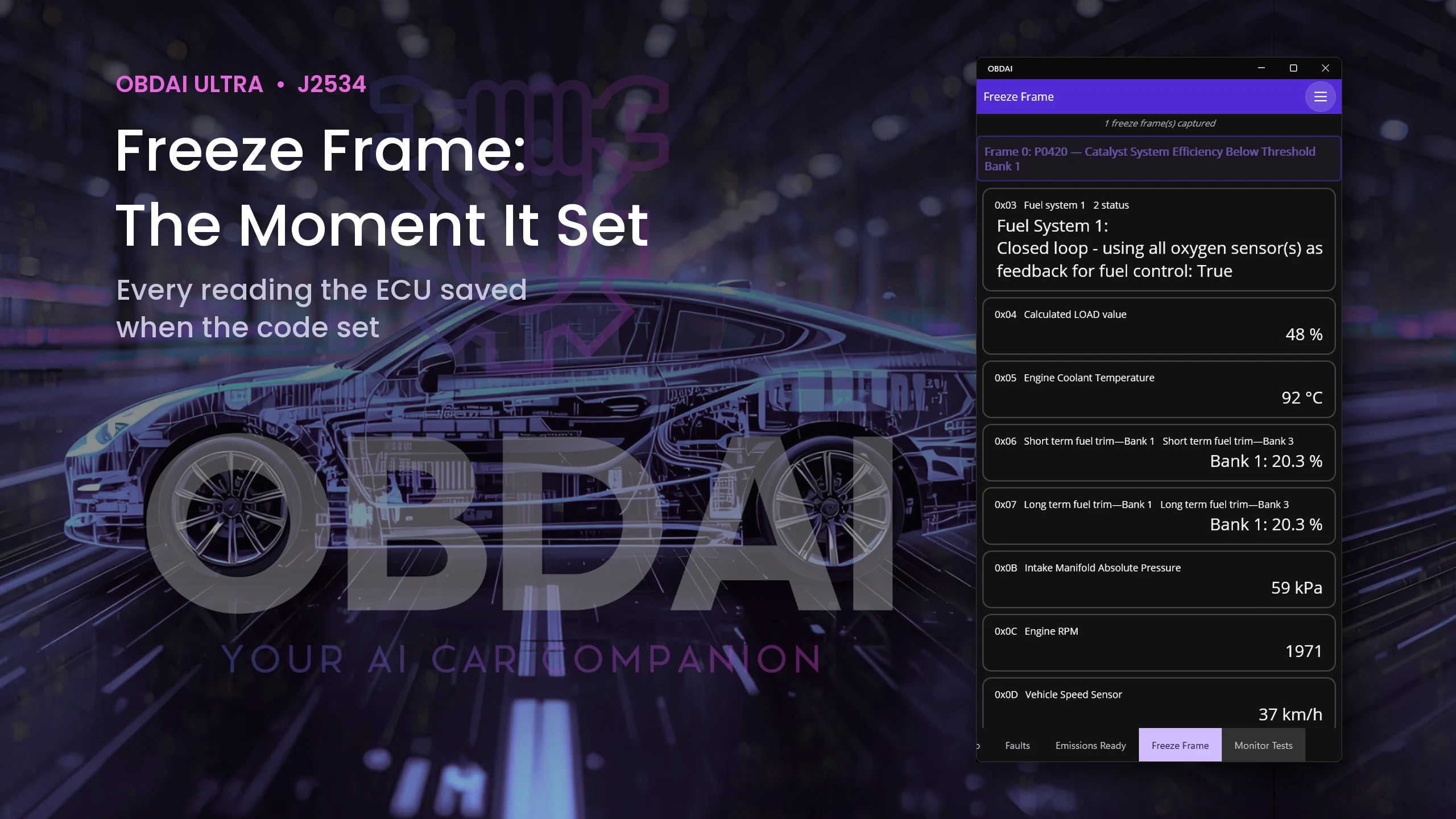
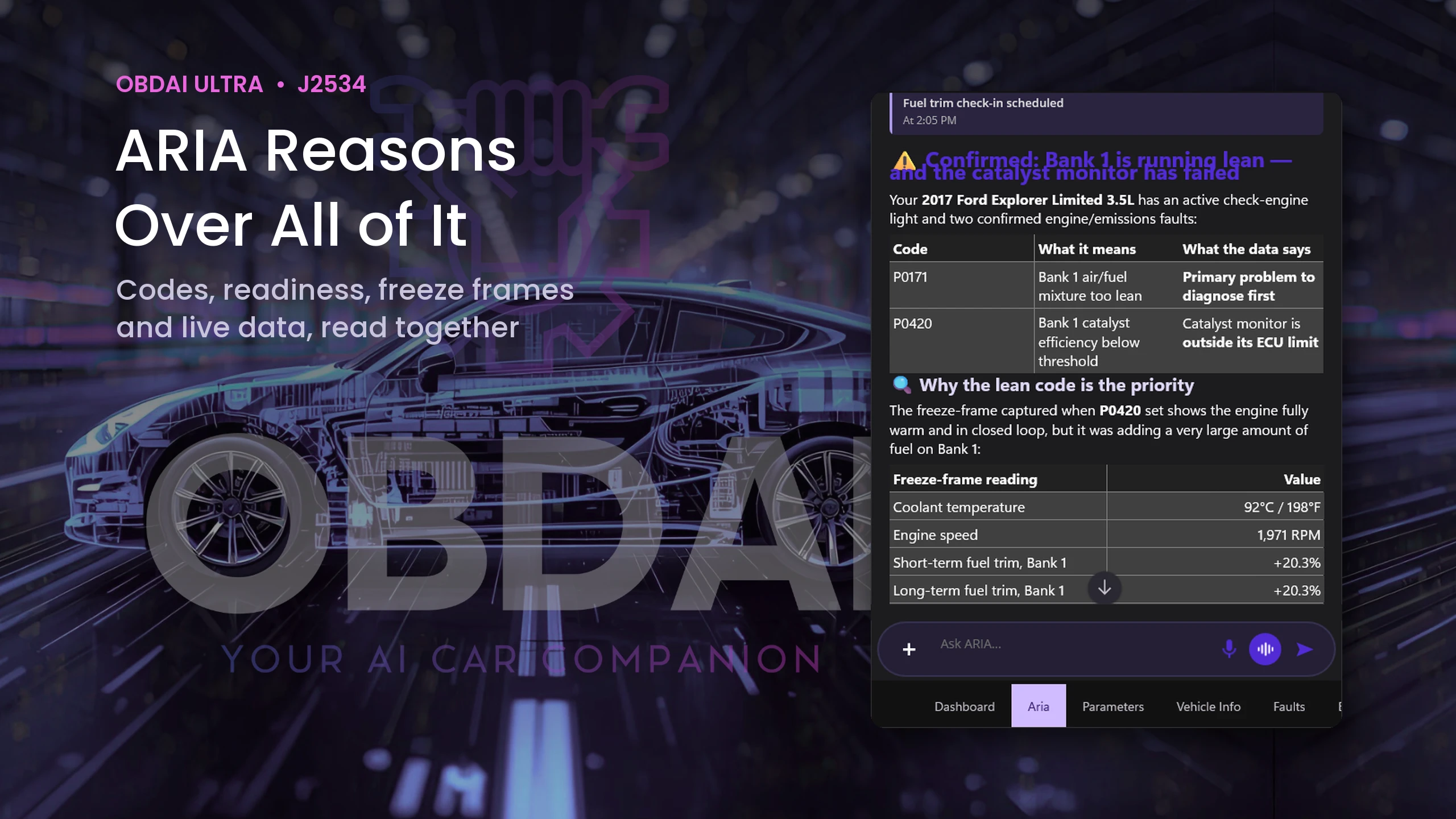
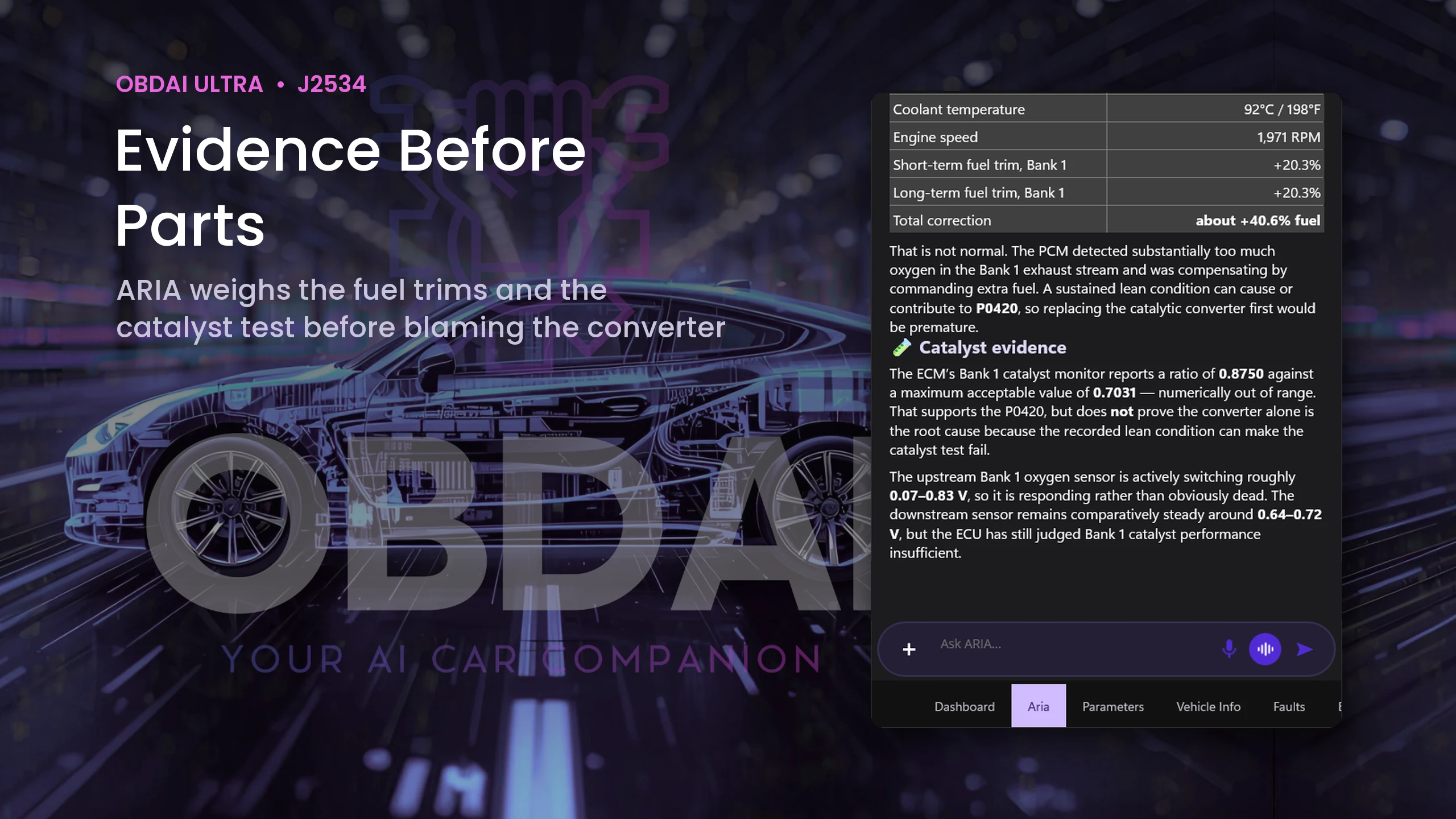
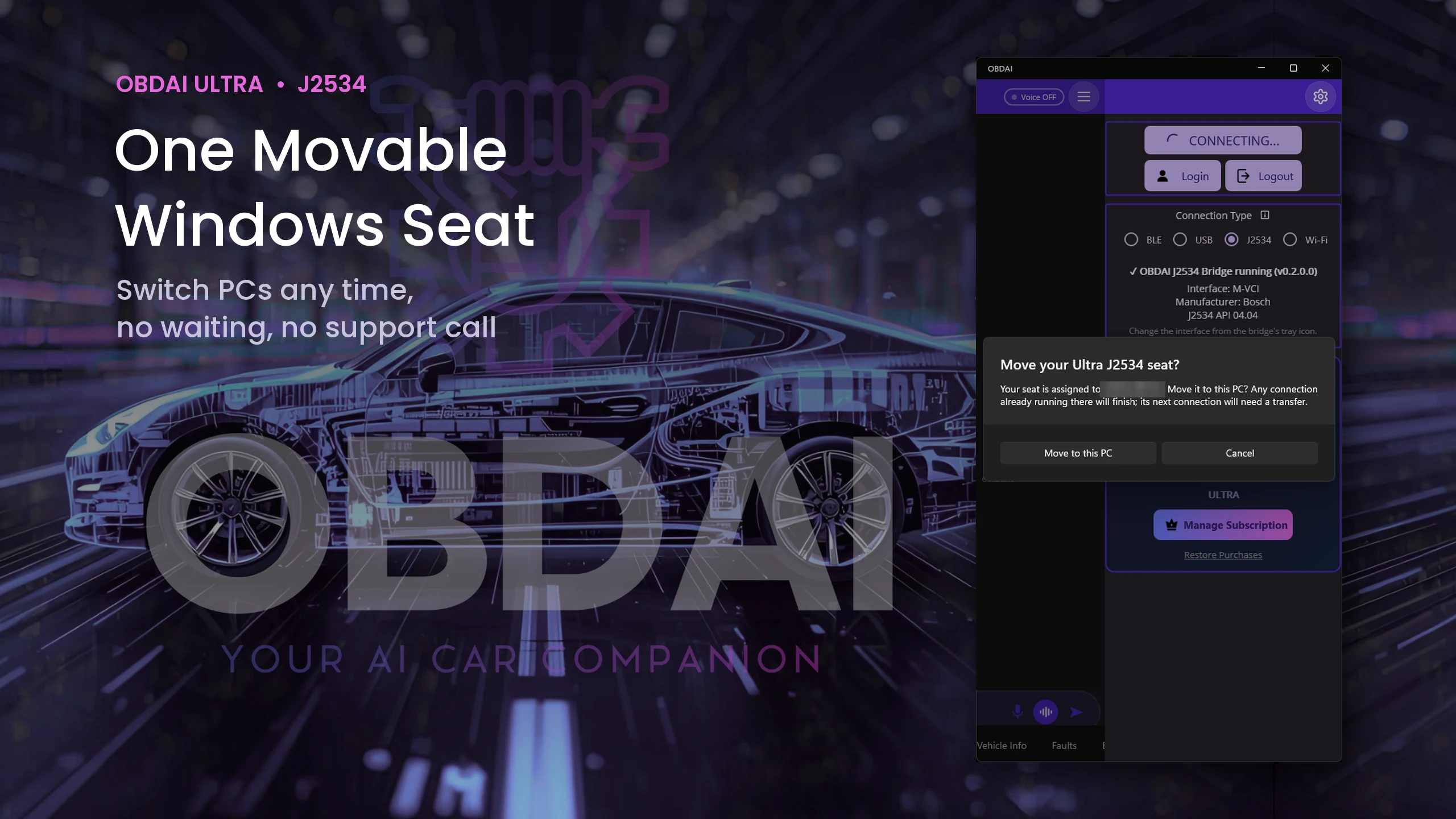
Use your Windows J2534-compatible interface with its manufacturer’s driver. The VCI and Windows PC are not included.
Your license key arrives with your order confirmation, so you can start on your own interface the same day. Your GEN2 ships separately.
Ultra ships the OBD BLE GEN2 for phone, tablet and road tests. Your VCI handles the Windows bench work. Use the GEN2 with the OBDAI app on iPhone, iPad, Android or Windows under the same account.
Ultra is not an add-on. It includes OBDAI Pro, so you keep the full Pro workflow on every device signed in to your account: ARIA diagnostics, condition watches and check-ins, the Pro dashboard, report builder with shop branding, saved reports and PDF downloads, freeze frame and Mode 6 review, and OBDonUDS on the GEN2.
Monthly allowances reset at the start of each calendar month (UTC), do not roll over and have no automatic paid overage. Existing purchased terms remain protected.
| Included | Not included |
|---|---|
|
|
Shipping and tax, if applicable, are shown separately at checkout.
No. Use the Windows J2534-compatible interface you already own. OBDAI implements the J2534 04.04 and 05.00 standards across manufacturers. Install your interface manufacturer’s Windows J2534 driver and select J2534 in OBDAI. Ultra includes GEN2; a J2534 VCI and Windows PC are not included.
OBDAI supports the same vehicle protocols through J2534 as through its other connections, including SAE J1850 PWM and VPW, ISO 9141-2, KWP2000, CAN and OBDonUDS.
Ultra provides diagnostics and ARIA analysis. Use your OEM programming software with your VCI for module programming or reflashing.
Ultra includes one transferable Windows J2534 seat per account. Sign in to the same account on the other PC and confirm the move. There is no transfer cooldown, and an existing live session is not interrupted.
Yes. Vehicle diagnostics and recording work offline after activation. ARIA and cloud services need internet.
Check the manufacturer’s Windows driver, device power and USB connection, then reopen the interface list from the OBDAI J2534 Bridge tray icon. If it still does not appear, contact support@obdai.app with a screenshot of the J2534 panel.
One OBD BLE GEN2 wireless adapter. A VCI, PC and tablet are not included. Your license key is in your order confirmation and in My Account orders, so you can start on the VCI you already own before the GEN2 arrives.
Download OBDAI and sign in to the account you will use. On Windows or Android, open the menu, choose Upgrade, then “Yes, I have a code”. On iPhone or iPad, activate through obdai.app/quickstart because Apple does not allow in-app code entry. Then follow the setup steps on your Windows PC.
Yes. The Pro features included with Ultra work on every device signed in to the same account: iPhone, iPad, Android and Windows. The J2534 connection uses one Windows seat per account, which you can move to another PC at any time.
U.S. orders ship within 1–2 business days, and delivery typically takes 3–5 business days via USPS. International orders ship within 1–2 business days, and delivery typically takes 7–14 business days depending on destination. Tracking is provided. Import duties, VAT and customs fees (if any) are the customer’s responsibility.
Direct orders have a 30-day return window, and the GEN2 includes a 1-year limited warranty. Full policy details.
Your subscription starts and charges when you buy. Activating or redeeming later gives you the remaining purchased term; it does not start another year or move your renewal date. Find the actual paid-through and renewal dates in My Account subscriptions.
No. The bundle includes a shipped GEN2 initially. Ultra renews at $365/year for service only, without replacement hardware. Pro service renewal remains $265/year. Shipping and tax, if applicable, are shown separately at checkout.
Use Upgrade or Downgrade on the applicable subscription in My Account. Woo checkout shows your actual credit, amount due and renewal date. It switches the existing software subscription, with no second GEN2 or second recurring subscription. Store purchases follow their own channel rules; contact support before making a second purchase.
Quick search returns a few short results inside normal ARIA questions. Deep research is a separate job: in the OBDAI app, choose Research a question, type the question with the year, make, model, engine and any readings you want checked, and confirm. ARIA reads factory and other primary service sources and returns a cited report, usually within a few minutes. Ultra includes 10 completed jobs per month, one at a time; a job that fails or returns no cited report does not count. The report cites its sources and identifies what to verify at the vehicle.
One optional ARIA review started by a due check-in or condition watch. Several events reviewed together count as one follow-up. Built-in check-engine-light and new-stored-code alerts do not spend the allowance. Watches and check-ins need the app open and connected.
Open My Account orders and the paid order details. Sign in to the intended OBDAI account before redeeming the license. Digital access and the GEN2 shipment are separate; you do not need to wait for the GEN2 delivery to start on your VCI. For an unresolved paid order, contact support@obdai.app.
Use My Account subscriptions to manage renewal and view its current status and paid-through date. Contact support for a refund request under the applicable purchase terms.
| Plan | Ultra |
|---|
Only logged in customers who have purchased this product may leave a review.
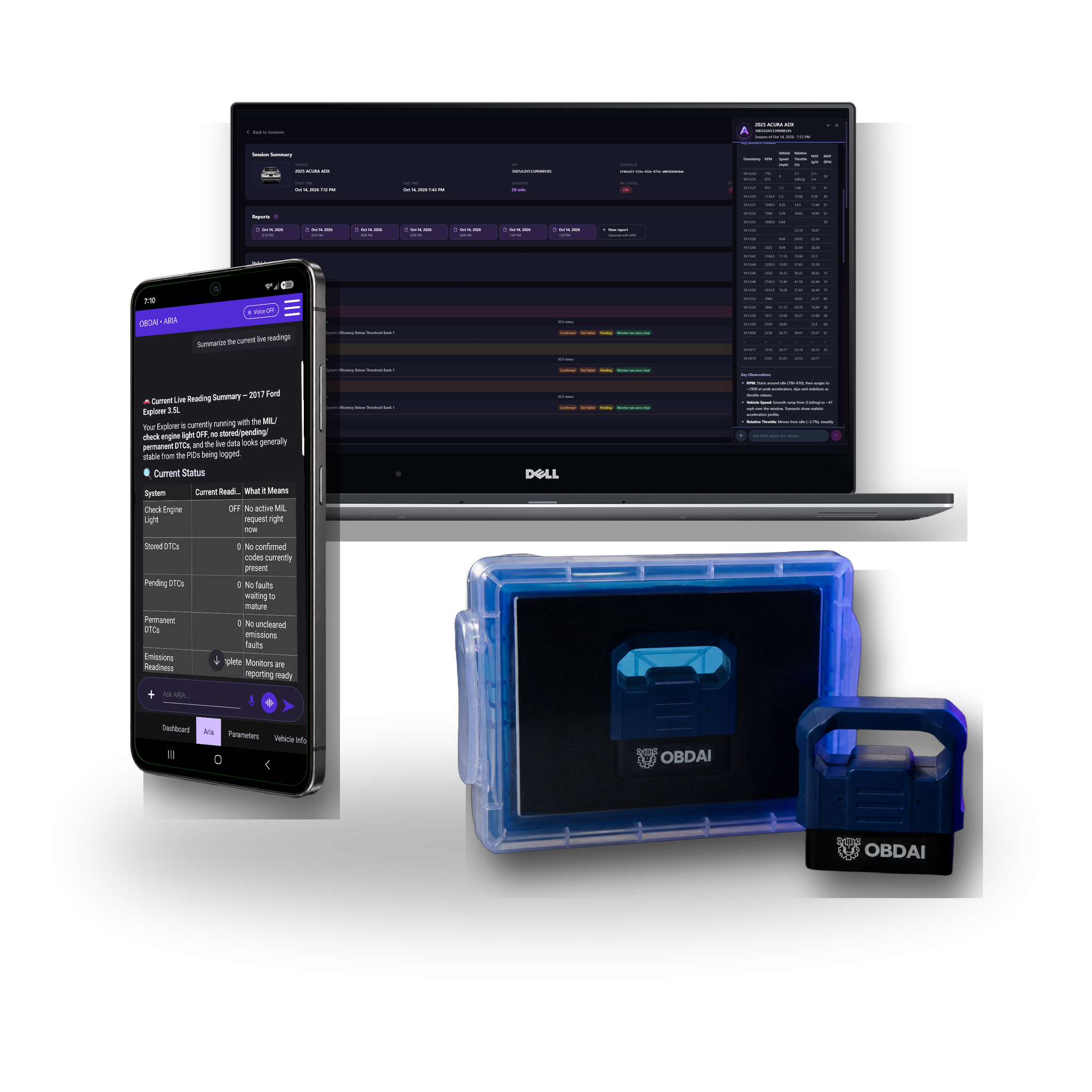
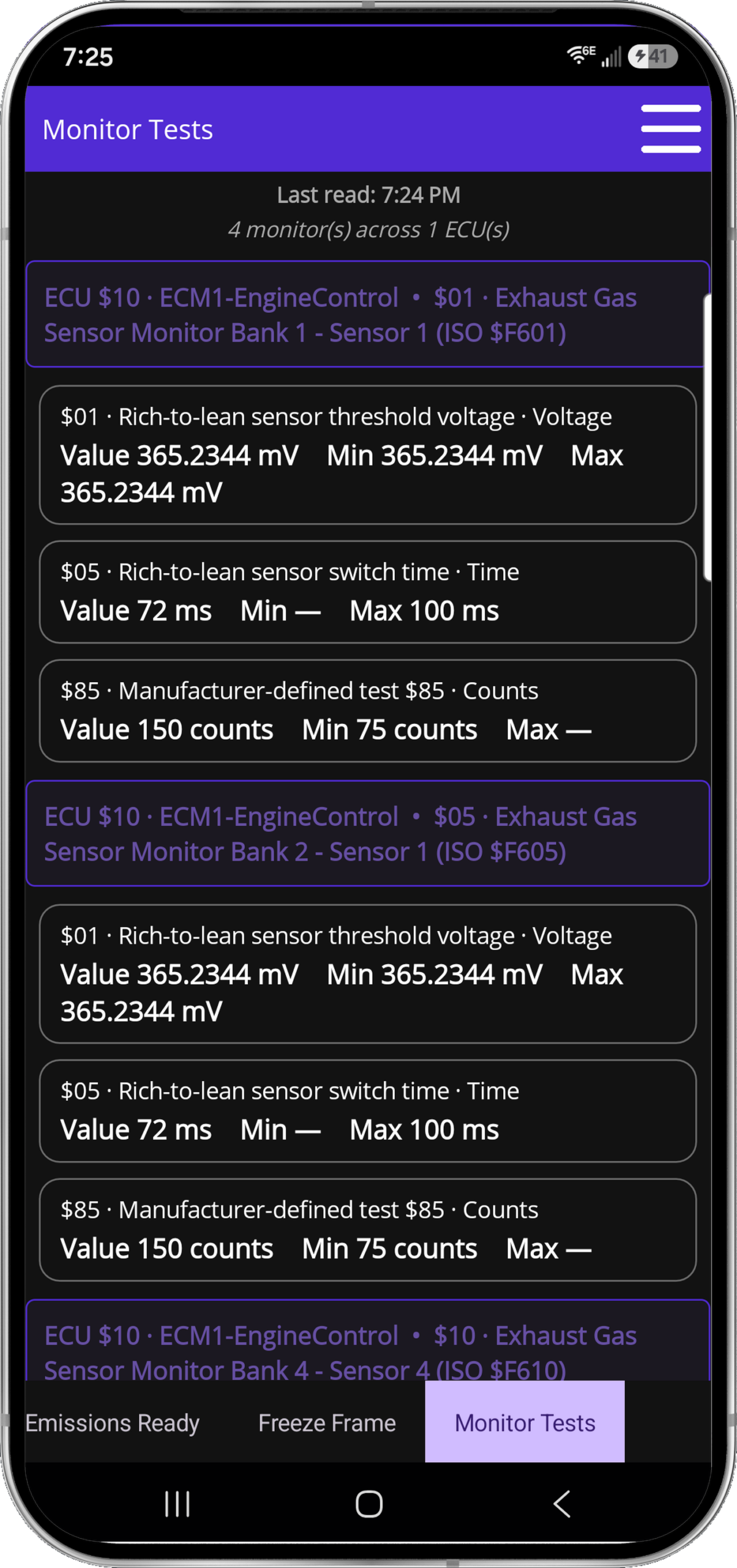
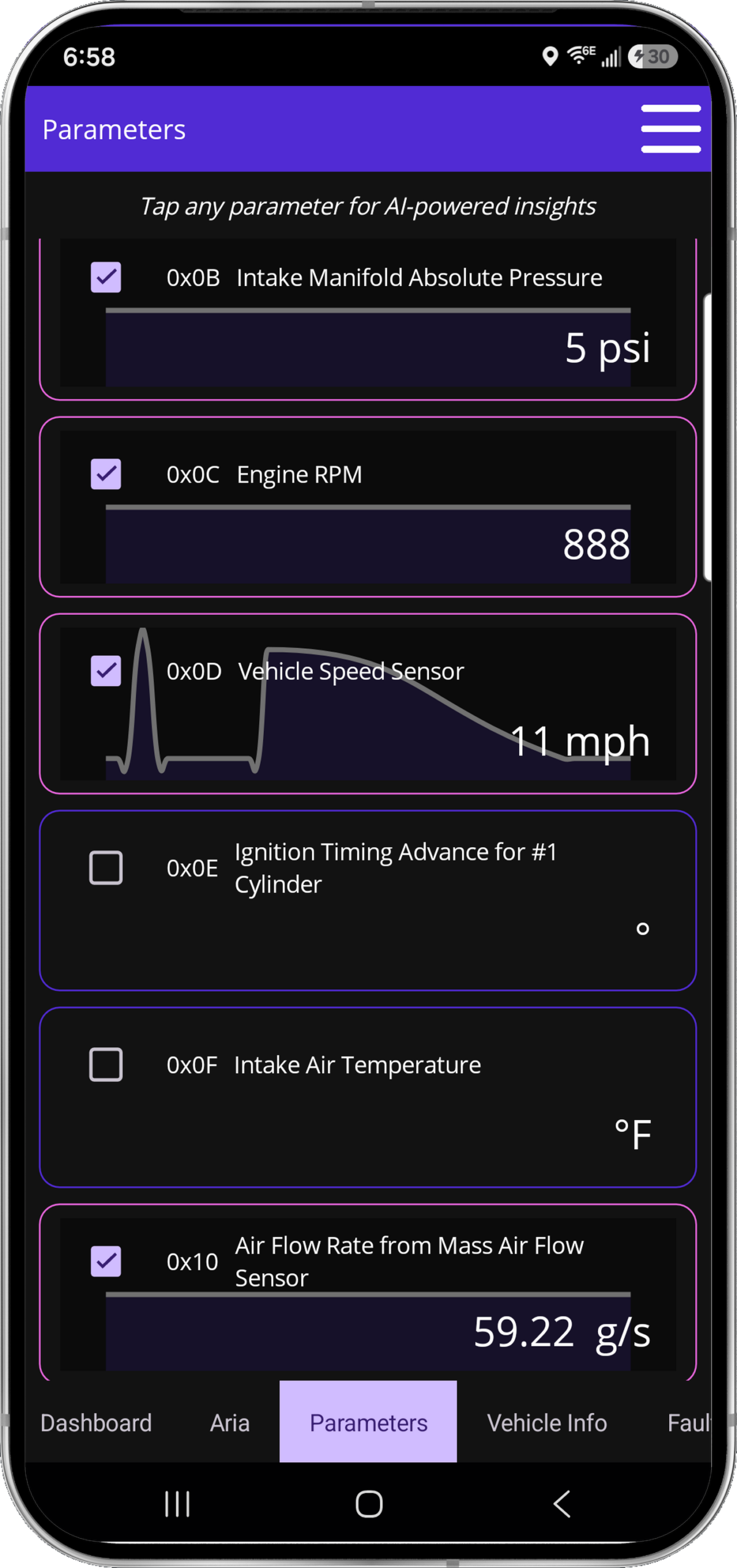
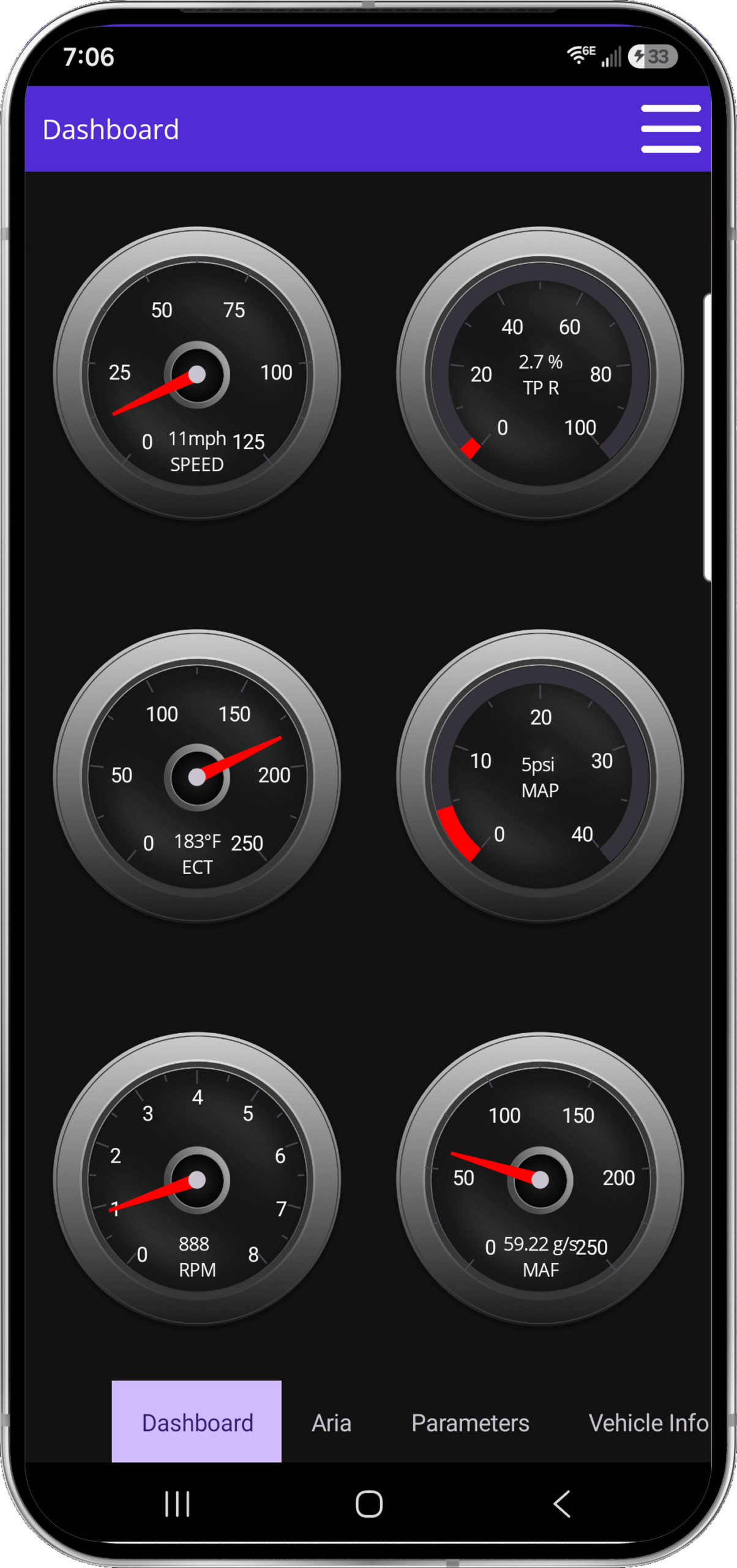

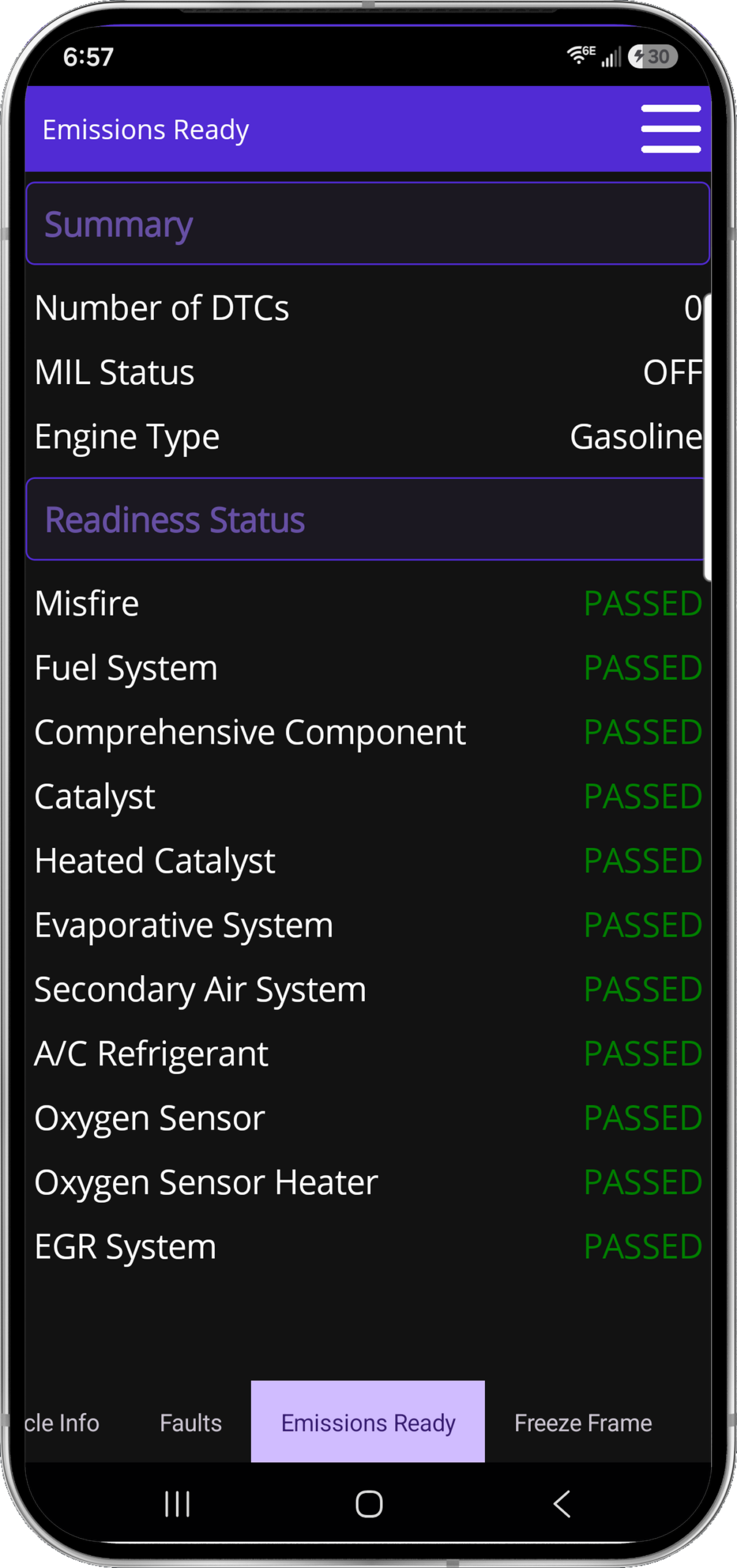


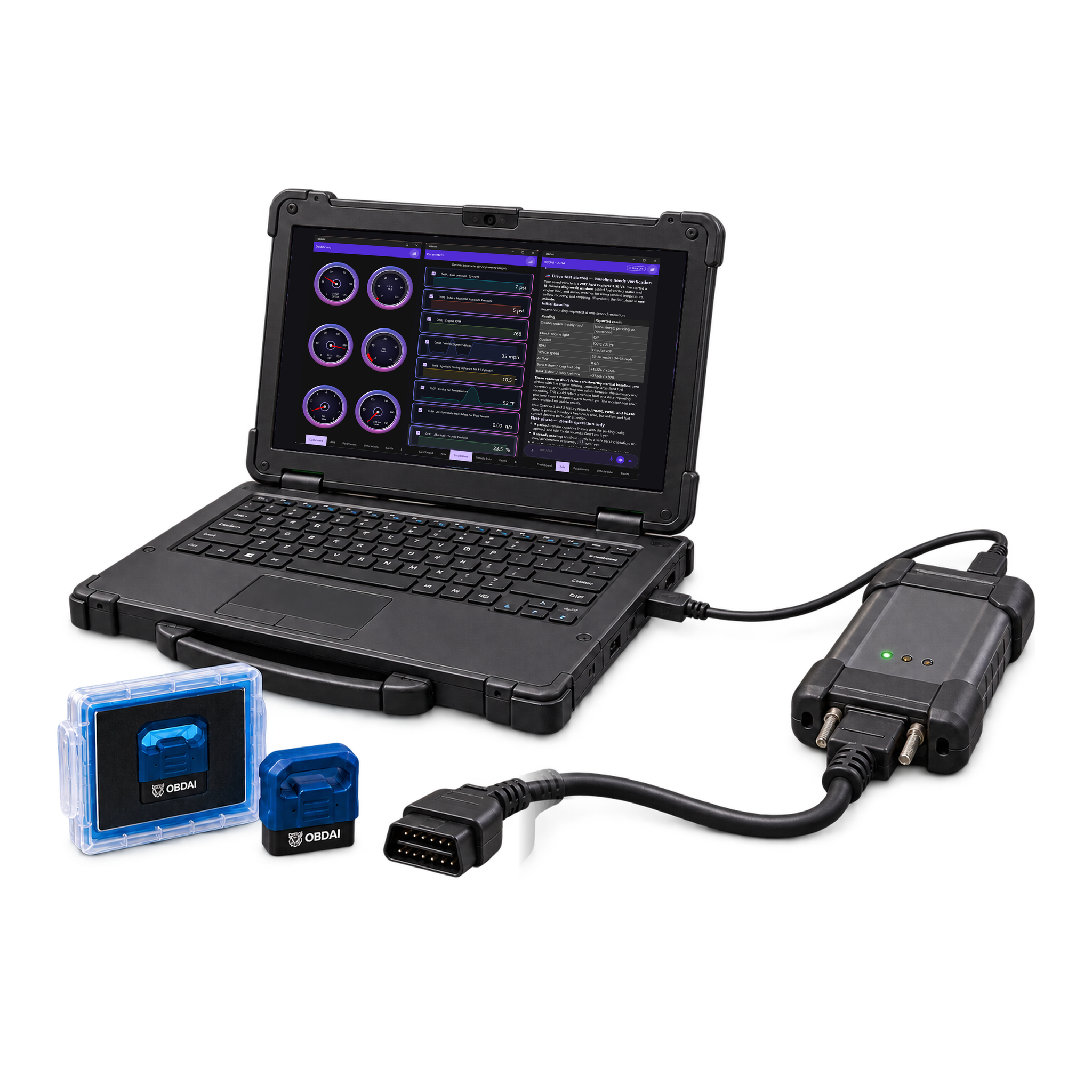
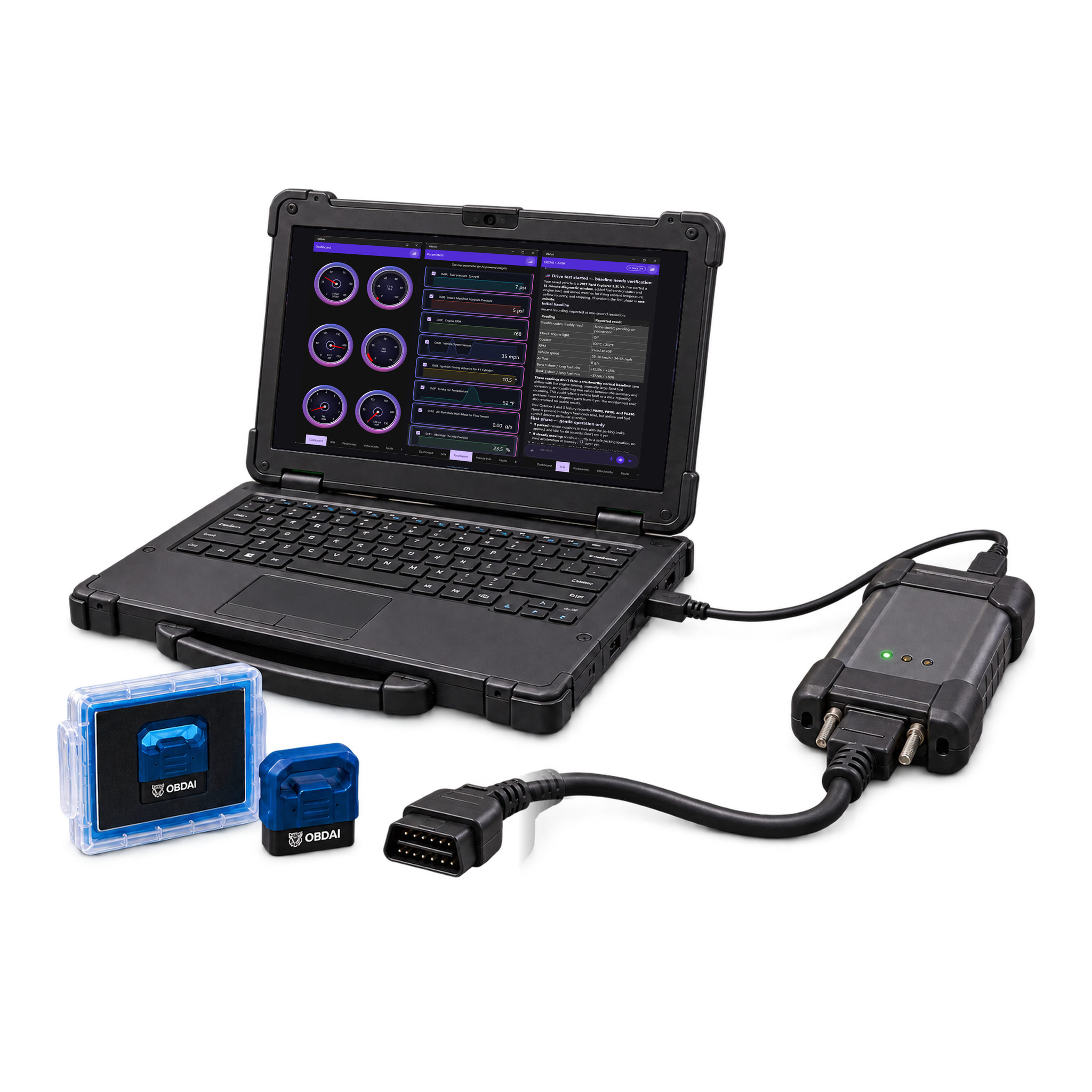
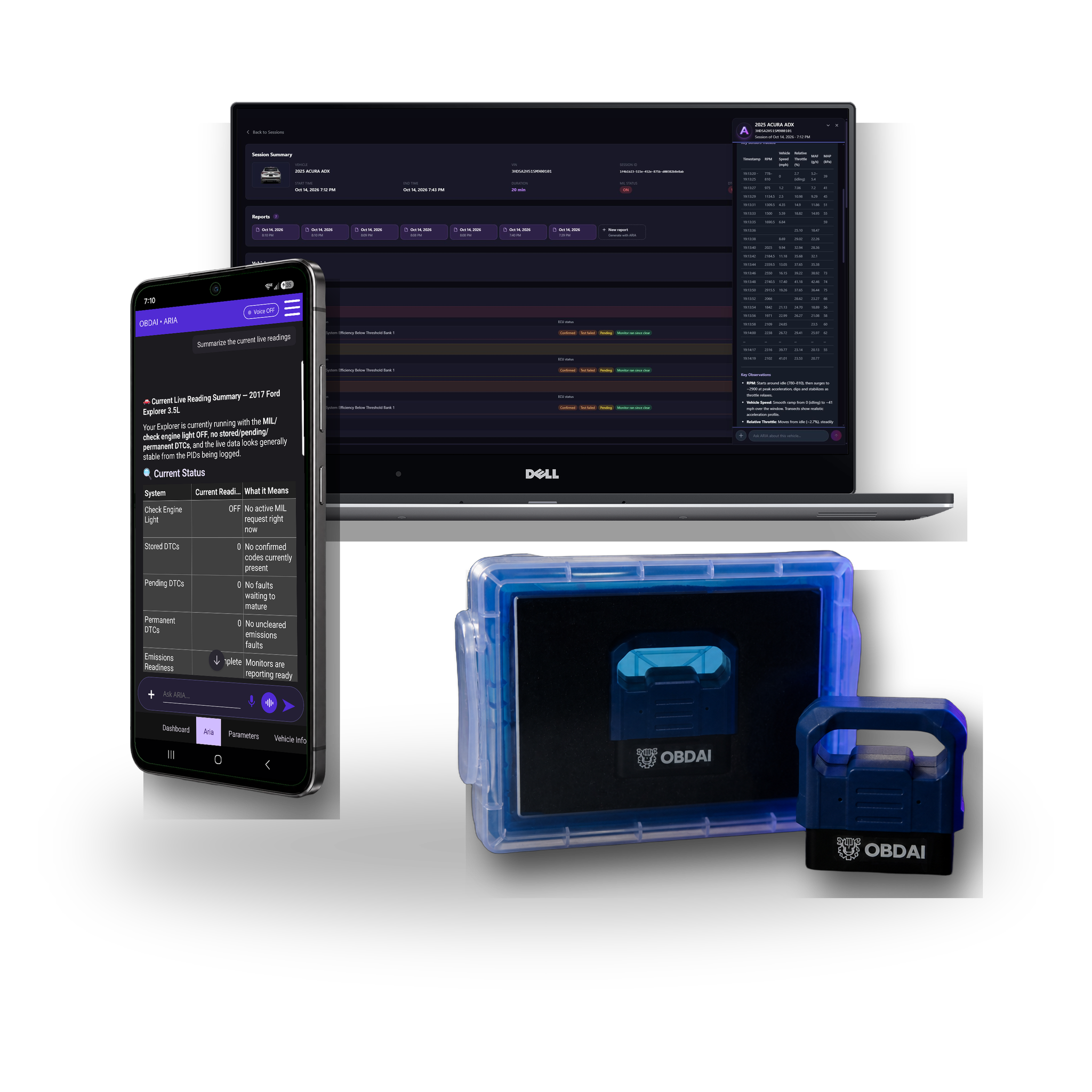
Hit the ground running with the pro shop tools you already own. Get your license key, download the Windows app and fire it up.
VCI and PC not included · GEN2 wireless adapter included










Real analysis from recorded vehicle sessions.
ARIA connects monitor results, operating conditions and parameter behavior.
Compare sessions and check the distance from the ECU’s reported limits.
Keep the analysis with the vehicle and share a clear report.
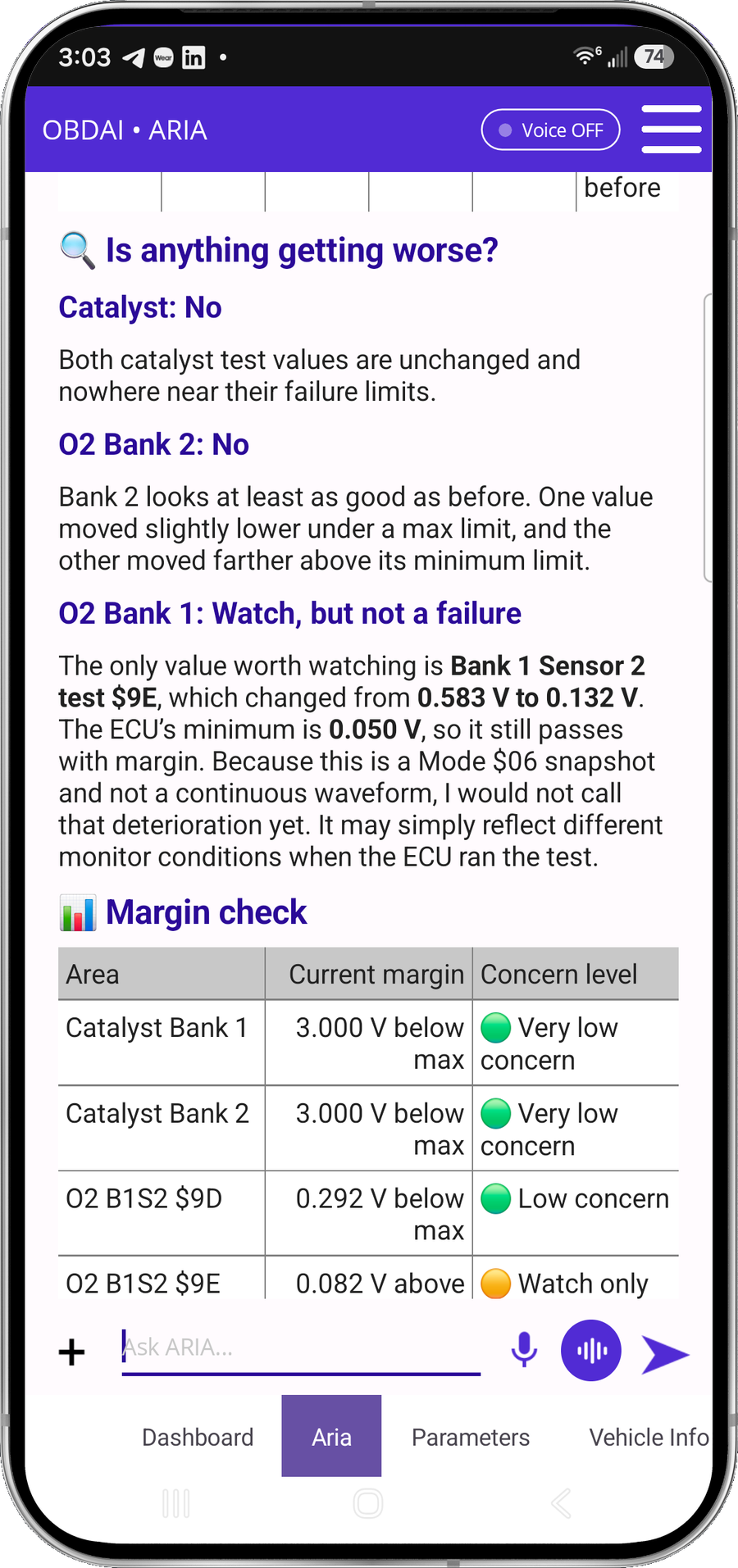
In this recorded example, ARIA compares 0.583 V with 0.132 V against a 0.050 V minimum. She explains the remaining margin and why a single monitor snapshot does not establish deterioration.
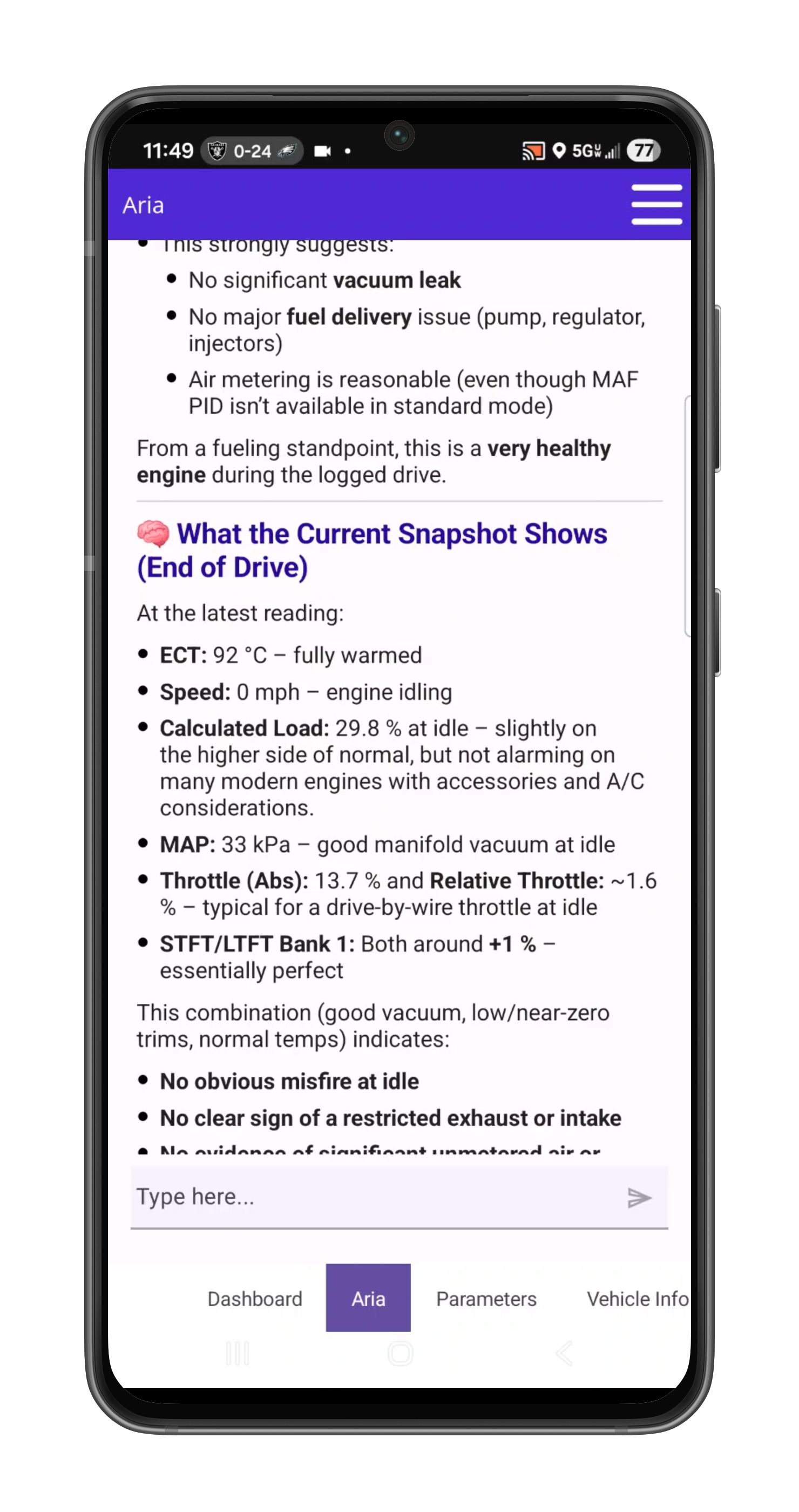
ARIA considers coolant temperature, load, manifold pressure, throttle and fuel trims together. The explanation ties the measurements to the vehicle’s operating state.
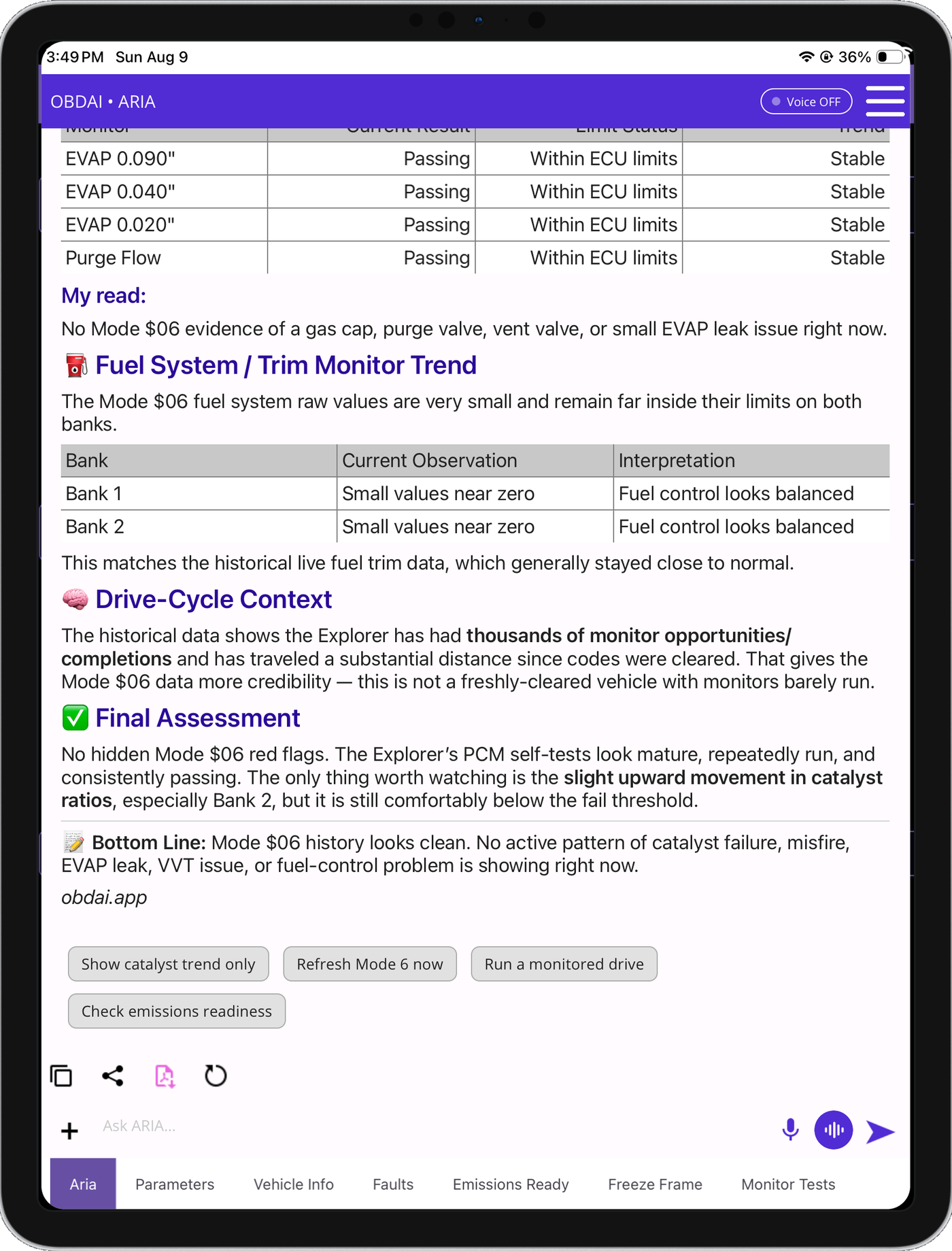
ARIA compares monitor trends with past fuel trims and drive-cycle context. In this example, she identifies a catalyst ratio worth watching while explaining that it remains below the failure threshold.
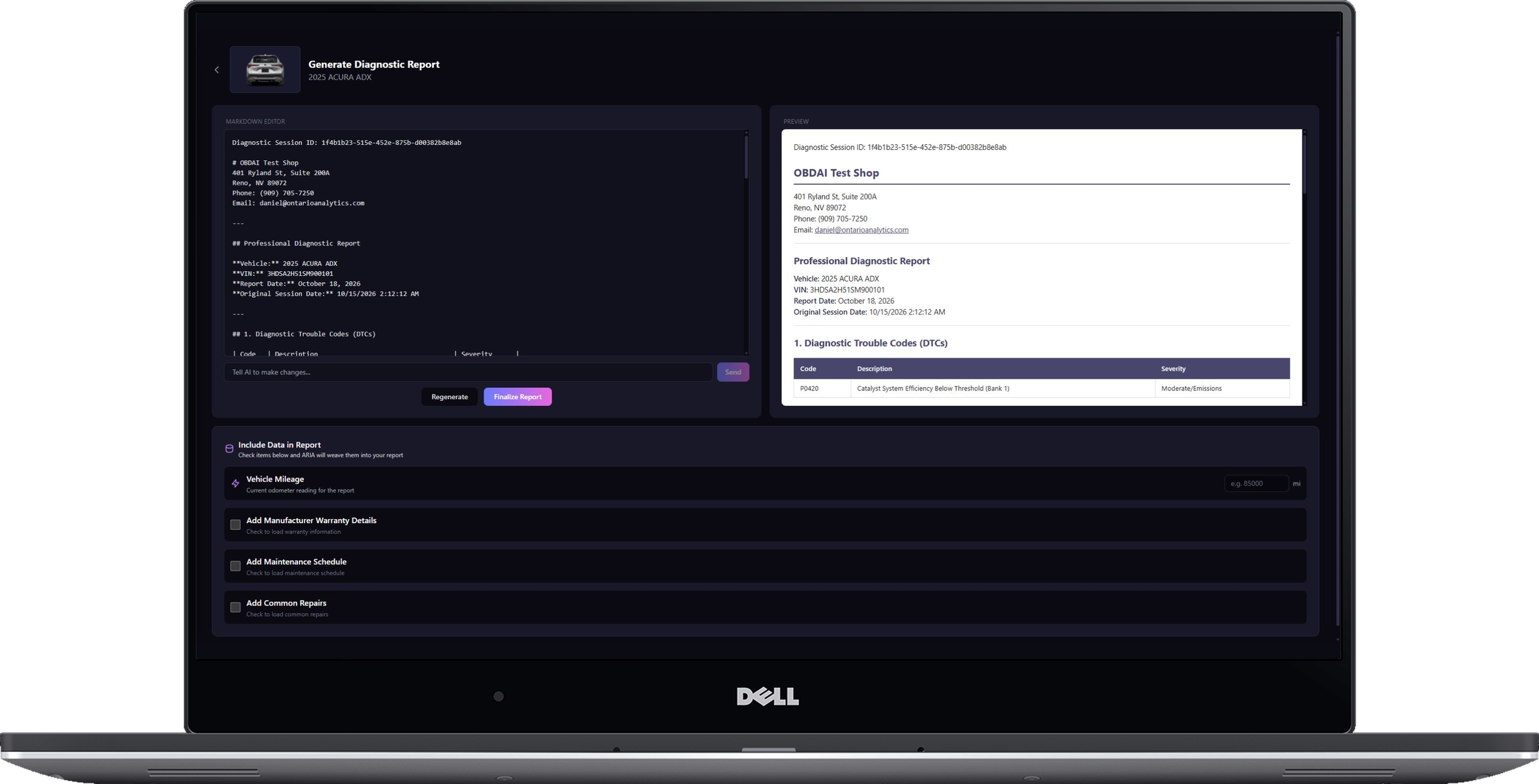
Continue the analysis with interactive ARIA Web Chat, choose the source session and turn the findings into an editable, shop-branded report with repair and maintenance context.
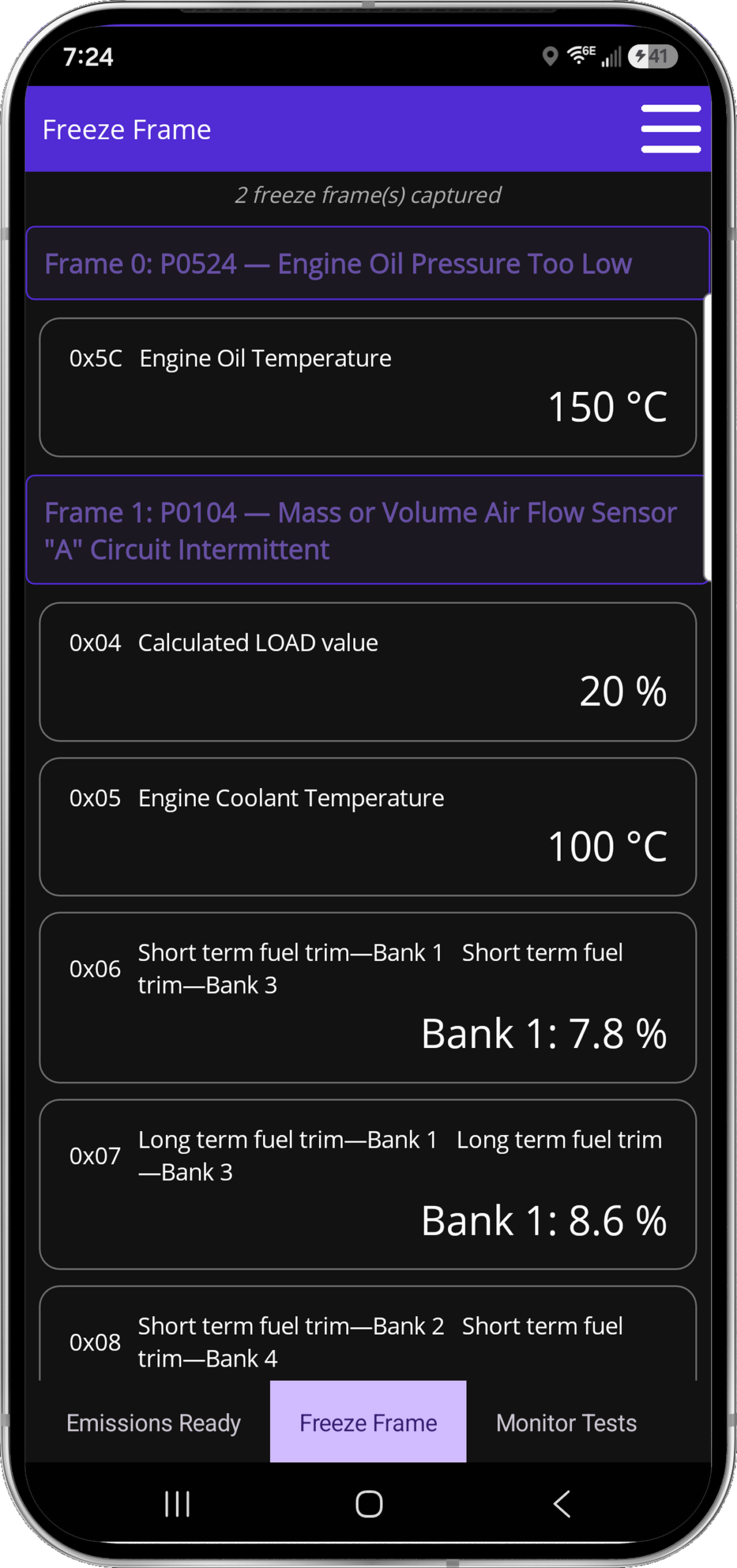
See the vehicle at the moment the fault set, then check the monitor evidence manufacturers use to judge component performance.
Selectable parameter graphs, six fixed dashboard gauges, emissions readiness and complete parameter coverage—presented as the actual product, not caption art.
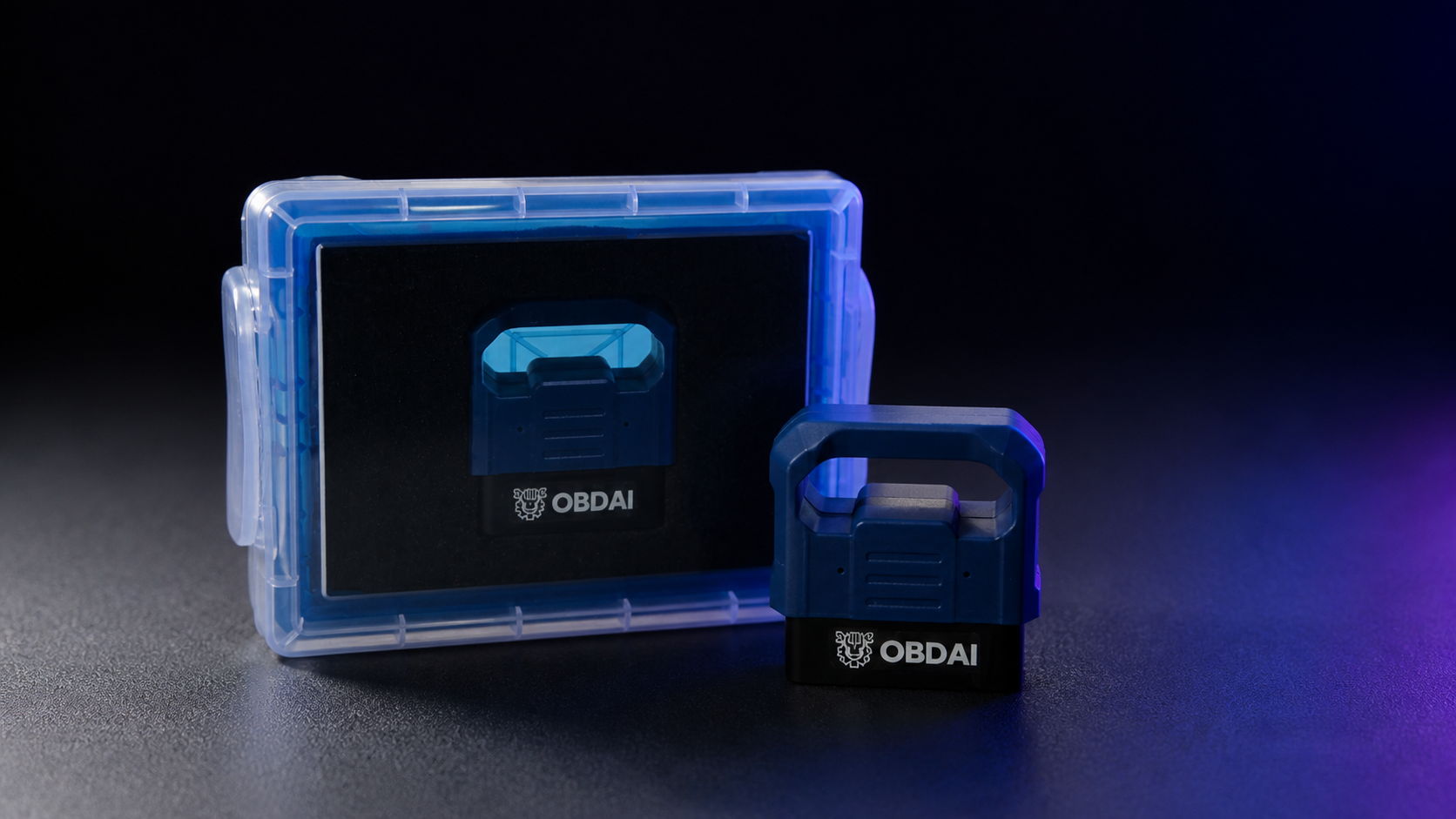
The OBD BLE GEN2 adapter connects the vehicle to OBDAI and enables SAE J1979-2 support. It arrives protected in its own case.
SAE J1979-2 support requires the OBD BLE GEN2 adapter.
Some questions can't be settled from a search snippet: which pin is which on a connector, what a sensor should read unplugged, or the factory test procedure for a code. For those, open Research a question in the OBDAI app, type your question with the year, make, model and engine, and confirm. ARIA searches, opens and reads factory and other primary service sources, then returns a cited report with what she found and where she found it. A job usually takes a few minutes.
Research works from the question you type. It does not read your recorded session on its own, so include the readings you want checked, such as a voltage, a fuel trim or a code.
A shop technician chasing a power-loss complaint on a 2015 Chevrolet Cruze 1.4T asked ARIA for the upstream O2 sensor connector pinout. Quick search only turned up parts-store snippets, so she wouldn't guess which pin was which. With the sensor unplugged he saw 1.275 V and spent the night treating it as a shorted sensor. GM's factory procedure puts the unplugged bias at 1.5 to 3.0 V, more than a generic O2 reading can display, so that reading was normal. With deep research, ARIA found GM's factory test procedure, gave the connector cavities with their tests, explained the 1.275 V reading and flagged that a parts-store pinout had the signal pins reversed.
Your Pro plan includes 3 completed research jobs per month (Ultra includes 10). One job runs at a time per account. A job that fails or returns no cited report does not count. Research usually takes a few minutes and needs internet. Your normal ARIA questions and quick search keep their usual access. Source availability and applicability vary; research cannot guarantee a pinout, procedure or repair result.
You describe the problem; ARIA plans the readings, conditions and follow-ups. Check-ins and condition watches share one active-slot pool in any mixture.
On a small screen, swipe or scroll the table to compare all three plans.
| Allowance or capability | Premium | Pro | Ultra |
|---|---|---|---|
| Active watches and check-ins, combined | 2 | 5 | 10 |
| Optional automatic follow-ups per connected session | 8 | 20 | 40 |
| Optional automatic follow-ups per account/month | 100 | 300 | 600 |
| ARIA deep research: completed jobs per account/month | Not included | 3; one job at a time | 10; one job at a time |
| Normal ARIA questions and existing quick search | Usual access | Usual access | Inherits Pro |
| Pro dashboard, reporting and shop branding | Premium reporting rules | Included | Inherits Pro |
| Supported Windows J2534 connection | Not included | Not included | One transferable Windows seat |
| Hardware in these GEN2 bundles | GEN2 | GEN2 | GEN2; VCI, PC and tablet excluded |
Watches and check-ins require the app to remain open and connected. Cloud features require internet. Vehicle, ECU, adapter and sampling support determine the readings available; a slot is not a faster polling rate.
Already subscribed? Purchased Premium/Pro allowances continue through the applicable paid term, including protected historical 5-slot/20-follow-up and uncapped monthly promises where purchased. Perpetual rights remain protected. New limits are not a silent midterm reduction.
One optional ARIA review started by a due check-in or condition watch. Several events reviewed together count as one follow-up; internal tools, searches and connection retries are not separate follow-ups. A review that starts processing spends one allowance even if its answer later fails. A request refused before processing spends none. Built-in check-engine-light and new-stored-code alerts do not spend the optional allowance.
Monthly allowances, including research jobs, reset at the start of each calendar month (UTC). They are shared across sessions, vehicles and devices. Unused allowance does not roll over, and there is no automatic paid overage. Upgrading changes the allowance without refilling usage.
No. Keep the app open and connected for watches and check-ins. A watch uses fresh readings and a confirmed change. ARIA helps you evaluate the evidence; it does not repair the vehicle for you.
Quick search returns a few short results inside normal ARIA questions. Deep research is a separate job: in the OBDAI app, choose Research a question, type the question with the vehicle details and any readings you want checked, and confirm. ARIA searches, opens and reads factory service sources, then returns a cited report: what she found, where it came from and what to confirm at the car. It does not read your recorded session on its own, so put the readings in the question. Pro includes 3 completed research jobs per month and Ultra includes 10, one job at a time per account. A job that fails or returns no cited report does not count. A report can explain conflicting or missing evidence; it cannot guarantee a pinout, procedure or repair result.
Your subscription starts and charges when you buy. Activating or redeeming later gives you the remaining purchased term; it does not start another year or move your renewal date. Find the actual paid-through and renewal dates in My Account subscriptions.
No. The new bundle includes a shipped GEN2 initially. Ultra renews at $365/year for service only, without replacement hardware. Pro service renewal remains $265/year. Shipping and tax, if applicable, are shown separately at checkout.
OBDAI Ultra adds a supported Windows J2534 connection and 10 deep-research jobs per month to Pro. Use Upgrade or Downgrade on the applicable subscription in My Account. Woo checkout shows your actual credit, amount due and renewal date. It switches the existing software subscription, with no second GEN2 or second recurring subscription. Store purchases follow their own channel rules; contact support before making a second purchase.
Open My Account orders and the paid order details. Sign in to the intended OBDAI account before redeeming the license. Digital access and the GEN2 shipment are separate; you do not need to wait for the scanner delivery to begin with supported equipment. For an unresolved paid order, contact support@obdai.app.
Use My Account subscriptions to manage renewal and view its current status and paid-through date. Contact support for a refund request under the applicable purchase terms.
Real analysis from recorded vehicle sessions.
ARIA connects monitor results, operating conditions and parameter behavior.
Compare sessions and check the distance from the ECU’s reported limits.
Keep the analysis with the vehicle and share a clear report.
In this recorded example, ARIA compares 0.583 V with 0.132 V against a 0.050 V minimum. She explains the remaining margin and why a single monitor snapshot does not establish deterioration.
ARIA considers coolant temperature, load, manifold pressure, throttle and fuel trims together. The explanation ties the measurements to the vehicle’s operating state.
ARIA compares monitor trends with past fuel trims and drive-cycle context. In this example, she identifies a catalyst ratio worth watching while explaining that it remains below the failure threshold.
Turn the session into a clear OBDAI report you can download, share and review later with the vehicle history.
See the vehicle at the moment the fault set, then check the monitor evidence manufacturers use to judge component performance.
Selectable parameter graphs, six fixed dashboard gauges, emissions readiness and complete parameter coverage—presented as the actual product, not caption art.
The included OBD BLE GEN2 adapter adds BLE 5.0, broader protocol support and up to six compatible sensor readings per exchange.
Qualifying OBD BLE GEN2 Premium customers receive OBDonUDS in 2027. Exact timing has not been fixed.
You describe the problem; ARIA plans the readings, conditions and follow-ups. Check-ins and condition watches share one active-slot pool in any mixture.
On a small screen, swipe or scroll the table to compare all three plans.
| Allowance or capability | Premium | Pro | Ultra |
|---|---|---|---|
| Active watches and check-ins, combined | 2 | 5 | 10 |
| Optional automatic follow-ups per connected session | 8 | 20 | 40 |
| Optional automatic follow-ups per account/month | 100 | 300 | 600 |
| ARIA deep research: completed jobs per account/month | Not included | 3; one job at a time | 10; one job at a time |
| Normal ARIA questions and existing quick search | Usual access | Usual access | Inherits Pro |
| Pro dashboard, reporting and shop branding | Premium reporting rules | Included | Inherits Pro |
| Supported Windows J2534 connection | Not included | Not included | One transferable Windows seat |
| Hardware in these GEN2 bundles | GEN2 | GEN2 | GEN2; VCI, PC and tablet excluded |
Watches and check-ins require the app to remain open and connected. Cloud features require internet. Vehicle, ECU, adapter and sampling support determine the readings available; a slot is not a faster polling rate.
Already subscribed? Purchased Premium/Pro allowances continue through the applicable paid term, including protected historical 5-slot/20-follow-up and uncapped monthly promises where purchased. Perpetual rights remain protected. New limits are not a silent midterm reduction.
One optional ARIA review started by a due check-in or condition watch. Several events reviewed together count as one follow-up; internal tools, searches and connection retries are not separate follow-ups. A review that starts processing spends one allowance even if its answer later fails. A request refused before processing spends none. Built-in check-engine-light and new-stored-code alerts do not spend the optional allowance.
Monthly allowances, including research jobs, reset at the start of each calendar month (UTC). They are shared across sessions, vehicles and devices. Unused allowance does not roll over, and there is no automatic paid overage. Upgrading changes the allowance without refilling usage.
No. Keep the app open and connected for watches and check-ins. A watch uses fresh readings and a confirmed change. ARIA helps you evaluate the evidence; it does not repair the vehicle for you.
Quick search returns a few short results inside normal ARIA questions. Deep research is a separate job: in the OBDAI app, choose Research a question, type the question with the vehicle details and any readings you want checked, and confirm. ARIA searches, opens and reads factory service sources, then returns a cited report: what she found, where it came from and what to confirm at the car. It does not read your recorded session on its own, so put the readings in the question. Pro includes 3 completed research jobs per month and Ultra includes 10, one job at a time per account. A job that fails or returns no cited report does not count. A report can explain conflicting or missing evidence; it cannot guarantee a pinout, procedure or repair result.
Your subscription starts and charges when you buy. Activating or redeeming later gives you the remaining purchased term; it does not start another year or move your renewal date. Find the actual paid-through and renewal dates in My Account subscriptions.
No. The new bundle includes a shipped GEN2 initially. Ultra renews at $365/year for service only, without replacement hardware. Pro service renewal remains $265/year. Shipping and tax, if applicable, are shown separately at checkout.
OBDAI Ultra adds a supported Windows J2534 connection and 10 deep-research jobs per month to Pro. Use Upgrade or Downgrade on the applicable subscription in My Account. Woo checkout shows your actual credit, amount due and renewal date. It switches the existing software subscription, with no second GEN2 or second recurring subscription. Store purchases follow their own channel rules; contact support before making a second purchase.
Open My Account orders and the paid order details. Sign in to the intended OBDAI account before redeeming the license. Digital access and the GEN2 shipment are separate; you do not need to wait for the scanner delivery to begin with supported equipment. For an unresolved paid order, contact support@obdai.app.
Use My Account subscriptions to manage renewal and view its current status and paid-through date. Contact support for a refund request under the applicable purchase terms.
Real analysis from recorded vehicle sessions.
ARIA connects monitor results, operating conditions and parameter behavior.
Compare sessions and check the distance from the ECU’s reported limits.
Keep the analysis with the vehicle and share a clear report.
In this recorded example, ARIA compares 0.583 V with 0.132 V against a 0.050 V minimum. She explains the remaining margin and why a single monitor snapshot does not establish deterioration.
ARIA considers coolant temperature, load, manifold pressure, throttle and fuel trims together. The explanation ties the measurements to the vehicle’s operating state.
ARIA compares monitor trends with past fuel trims and drive-cycle context. In this example, she identifies a catalyst ratio worth watching while explaining that it remains below the failure threshold.
Turn the session into a clear OBDAI report you can download, share and review later with the vehicle history.
See the vehicle at the moment the fault set, then check the monitor evidence manufacturers use to judge component performance.
Selectable parameter graphs, six fixed dashboard gauges, emissions readiness and complete parameter coverage—presented as the actual product, not caption art.
The standard wireless GEN1 interface is included with the complete Premium software experience for supported vehicles.
OBDAI Ultra works with Windows J2534-compatible interfaces. OBDAI implements the J2534 04.04 and 05.00 standards, so compatibility extends across manufacturers. Common interfaces include the devices below.
Ready for upcoming OEM parameters. Some upcoming manufacturer-specific parameters will require a compatible J2534 interface. Others will also be available through GEN2.
| Brand or family | Look for your interface |
|---|---|
| Bosch / OTC | Mastertech M-VCI / Mastertech VCI; Mastertech II / MTECH2; Bosch Flasher Pro; MTS 6531; GVCI-MX / MTS 6534; MTS 6512, 6513, 6516 and 6517; ADS-series VCI; OTC Evolve VCI |
| General Motors | GM MDI; GM MDI 2 / EL-52100 |
| Ford | VCM II / VCM2; VCM 3 / VCM III; VCMM |
| Honda / Acura | Bosch MVCI; DENSO DST-i; DST-nano; Antares Capsule / HAC |
| CarDAQ / Drew Technologies / Opus IVS | CarDAQ-Plus; CarDAQ-M / Mega-CAN; CarDAQ-Plus 2; CarDAQ-Plus 3; CarDAQ Pro; SuperGoose-Plus; DrewLinQ |
| Mongoose / Toyota Techstream Lite | Mongoose ISO/CAN; MongoosePro Chrysler, Ford, GM2, Honda, Jaguar/Land Rover, Nissan, Toyota2 and VW/Audi; Mongoose-Plus Ford2, GM3, Honda2, Subaru, Nissan2, VW/Audi, ISO/CAN3 and Chrysler2; Mongoose-Plus MFC / MFC3 / Toyota3; MongoosePro MFC2; Toyota Techstream Lite with its Mongoose interface |
| Snap-on | Pass Thru Pro II; Pass Thru Pro III; Pass Thru Pro IV / EETA113D |
| Matco | MDMaxBox / MDMAXBOX; MaxSync |
| DENSO | DST-i; DST-nano; DST-010 / DN-DST-010 variants for Toyota, Honda, Daihatsu, Subaru, Mazda and Hino |
| DG / AutoEnginuity / Cardone | VSI-2534 / VSI-J2534; VSI NxGen; VSI NxGen PLUS; d-briDGe; d-briDGe PRO; PX3; Cardone FLASH2 |
| Autel | MaxiFlash Pro; MaxiFlash Elite; JVCI; JVCI+; VCI; VCMI; VCMI2; XLink |
| LAUNCH | J-Box2; SmartLink C; SmartLink C V2.0; SmartLink C V3.0 |
| TOPDON | RLink J2534; RLink Lite; RLink X7; RLink X3; Phoenix MDCI Pro |
| THINKCAR / XTOOL | THINKCAR ThinkLink; MUCAR 892BT PRO VCI; XTOOL XVCI MAX / J2534X; XPortal |
| Scanmatik / Tactrix | Scanmatik SM2; SM2-PRO; SM3; Tactrix Openport 2.0 |
| ACTIA / Controller Technologies | ACTIA PassThru+ XS 2G / XS2G; CTC Pulsar; UCAN; UCAN2; VehicleBox; DRB+ |
Install your interface manufacturer’s Windows J2534 driver, then select J2534 in OBDAI.
Choose J2534 in the OBDAI Windows app and you get the same full OBDAI workflow you'd get from our own adapters, running through the interface you already trust.
Setup help. Contact support@obdai.app for OBDAI setup help. Get VCI drivers and firmware updates from your interface manufacturer.
OBDAI Ultra on Windows
Real OBDAI screens showing the J2534 connection, vehicle data and ARIA on Windows. Tap any screen to see it full size.
Use your Windows J2534-compatible interface with its manufacturer's driver. The VCI and Windows PC are not included.
Your license key arrives with your order confirmation, so you can start on your own interface the same day. Your GEN2 ships separately.
Ultra ships the OBD BLE GEN2 for phone, tablet and road tests. Your VCI handles the Windows bench work. Use the GEN2 with the OBDAI app on iPhone, iPad, Android or Windows under the same account.
Ultra is not an add-on. It includes OBDAI Pro, so you keep the full Pro workflow on every device signed in to your account: ARIA diagnostics, condition watches and check-ins, the Pro dashboard, report builder with shop branding, saved reports and PDF downloads, freeze frame and Mode 6 review, and OBDonUDS on the GEN2.
Real analysis from recorded vehicle sessions.
ARIA connects monitor results, operating conditions and parameter behavior.
Compare sessions and check the distance from the ECU’s reported limits.
Keep the analysis with the vehicle and share a clear report.
In this recorded example, ARIA compares 0.583 V with 0.132 V against a 0.050 V minimum. She explains the remaining margin and why a single monitor snapshot does not establish deterioration.
ARIA considers coolant temperature, load, manifold pressure, throttle and fuel trims together. The explanation ties the measurements to the vehicle’s operating state.
ARIA compares monitor trends with past fuel trims and drive-cycle context. In this example, she identifies a catalyst ratio worth watching while explaining that it remains below the failure threshold.
Continue the analysis with interactive ARIA Web Chat, choose the source session and turn the findings into an editable, shop-branded report with repair and maintenance context.
Monthly allowances reset at the start of each calendar month (UTC), do not roll over and have no automatic paid overage. Existing purchased terms remain protected.
| Included | Not included |
|---|---|
|
|
Shipping and tax, if applicable, are shown separately at checkout.
No. Use the Windows J2534-compatible interface you already own. OBDAI implements the J2534 04.04 and 05.00 standards across manufacturers. Install your interface manufacturer's Windows J2534 driver and select J2534 in OBDAI. Ultra includes GEN2; a J2534 VCI and Windows PC are not included.
OBDAI supports the same vehicle protocols through J2534 as through its other connections, including SAE J1850 PWM and VPW, ISO 9141-2, KWP2000, CAN and OBDonUDS.
Ultra provides diagnostics and ARIA analysis. Use your OEM programming software with your VCI for module programming or reflashing.
Ultra includes one transferable Windows J2534 seat per account. Sign in to the same account on the other PC and confirm the move. There is no transfer cooldown, and an existing live session is not interrupted.
Yes. Vehicle diagnostics and recording work offline after activation. ARIA and cloud services need internet.
Check the manufacturer's Windows driver, device power and USB connection, then reopen the interface list from the OBDAI J2534 Bridge tray icon. If it still does not appear, contact support@obdai.app with a screenshot of the J2534 panel.
One OBD BLE GEN2 wireless adapter. A VCI, PC and tablet are not included. Your license key is in your order confirmation and in My Account orders, so you can start on the VCI you already own before the GEN2 arrives.
Download OBDAI and sign in to the account you will use. On Windows or Android, open the menu, choose Upgrade, then "Yes, I have a code". On iPhone or iPad, activate through obdai.app/quickstart because Apple does not allow in-app code entry. Then follow the setup steps on your Windows PC.
Yes. The Pro features included with Ultra work on every device signed in to the same account: iPhone, iPad, Android and Windows. The J2534 connection uses one Windows seat per account, which you can move to another PC at any time.
U.S. orders ship within 1–2 business days, and delivery typically takes 3–5 business days via USPS. International orders ship within 1–2 business days, and delivery typically takes 7–14 business days depending on destination. Tracking is provided. Import duties, VAT and customs fees (if any) are the customer's responsibility.
Direct orders have a 30-day return window, and the GEN2 includes a 1-year limited warranty. Full policy details.
Your subscription starts and charges when you buy. Activating or redeeming later gives you the remaining purchased term; it does not start another year or move your renewal date. Find the actual paid-through and renewal dates in My Account subscriptions.
No. The bundle includes a shipped GEN2 initially. Ultra renews at $365/year for service only, without replacement hardware. Pro service renewal remains $265/year. Shipping and tax, if applicable, are shown separately at checkout.
Use Upgrade or Downgrade on the applicable subscription in My Account. Woo checkout shows your actual credit, amount due and renewal date. It switches the existing software subscription, with no second GEN2 or second recurring subscription. Store purchases follow their own channel rules; contact support before making a second purchase.
Quick search returns a few short results inside normal ARIA questions. Deep research is a separate job: in the OBDAI app, choose Research a question, type the question with the year, make, model, engine and any readings you want checked, and confirm. ARIA reads factory and other primary service sources and returns a cited report, usually within a few minutes. Ultra includes 10 completed jobs per month, one at a time; a job that fails or returns no cited report does not count. The report cites its sources and identifies what to verify at the vehicle.
One optional ARIA review started by a due check-in or condition watch. Several events reviewed together count as one follow-up. Built-in check-engine-light and new-stored-code alerts do not spend the allowance. Watches and check-ins need the app open and connected.
Open My Account orders and the paid order details. Sign in to the intended OBDAI account before redeeming the license. Digital access and the GEN2 shipment are separate; you do not need to wait for the GEN2 delivery to start on your VCI. For an unresolved paid order, contact support@obdai.app.
Use My Account subscriptions to manage renewal and view its current status and paid-through date. Contact support for a refund request under the applicable purchase terms.


Reviews
There are no reviews yet.